What if starting a new coding project meant spending less time setting things up and more time actually building something?
With PictoBlox 10.0.0, even first-time users can begin their coding journey with confidence. The new Getting Started experience offers step-by-step guidance and interactive activities across Blocks, Junior Blocks, Py Editor, and Machine Learning, helping beginners explore the platform and create their first projects.
Imagine opening a ready-made Arduino project, connecting a sensor, experimenting with programming blocks, or using a robot’s camera to explore Machine Learning and interactive experiences.
PictoBlox 10.0.0 brings more possibilities to learn, code, and create in one platform.
This update introduces 40+ new examples, expanded Arduino support, improved learning resources, an enhanced Embedded C++ workflow, advanced sensor integrations, and a more convenient user experience.
For robotics enthusiasts, Quarky Firmware 7.0 and Quarky Intellio Firmware 2.0.0 introduce new extensions, communication improvements, and enhanced hardware capabilities.
Whether you’re writing your first program or building advanced robotics projects, let’s explore what’s new in PictoBlox 10.0.0.
Visit the official PictoBlox Download page and discover what you can create next.
What’s New in PictoBlox 10.0.0?
PictoBlox 10.0.0 introduces exciting new features, expanded hardware compatibility, and improved learning resources, giving users more ways to explore coding, robotics, Artificial Intelligence, and real-world applications.
Here’s a quick overview of the major additions and improvements.
| Feature | What’s New |
| Organization ID | Connect all of your institution’s devices to your organization using a unique Organization ID. |
| New and Expanded Extensions | Explore AprilTags, I2C Communication, 5CH IR Line Following, Advanced Sensors, and more interactive coding capabilities. |
| Embedded C++ Board Manager | Search for compatible boards, install compiler packages, and manage hardware directly in PictoBlox. |
| Embedded C++ Examples | Access ready-made examples associated with installed board packages and their libraries. |
| New Arduino Support | Block coding support for Arduino Alvik, UNO R4 Minima, and UNO R4 WiFi. |
| File Compatibility | Open, edit, and save .ino, .py, and .ipynb files to work across compatible development environments. |
| Getting Started | Guided activities and interactive learning resources for Blocks, Junior Blocks, Py Editor, and Machine Learning. |
| 40+ New Examples | Discover new projects, additional Python examples, and improved extension and example documentation. |
| User Interface Improvements | Updated profiles, enhanced notifications, board troubleshooting guidance, and a redesigned navigation bar. |
| Intellio Camera in ML and XR | Use Quarky Intellio’s camera for Machine Learning model training and interactive 3D and XR projects. |
| Quarky Firmware 7.0 | New sensor and communication extensions, servo speed control, and improved Quarky Connect functionality. |
| Intellio Firmware 2.0.0 | Expanded Upload Mode support, Serial/BLE communication, camera streaming, audio features, and image saving. |
These additions build on PictoBlox’s existing capabilities, making it easier to discover new features, work with different hardware, and create projects across multiple programming environments.
Let’s explore each update and see how it enhances the PictoBlox experience.
Organization ID – Simplifying Device Management for Schools
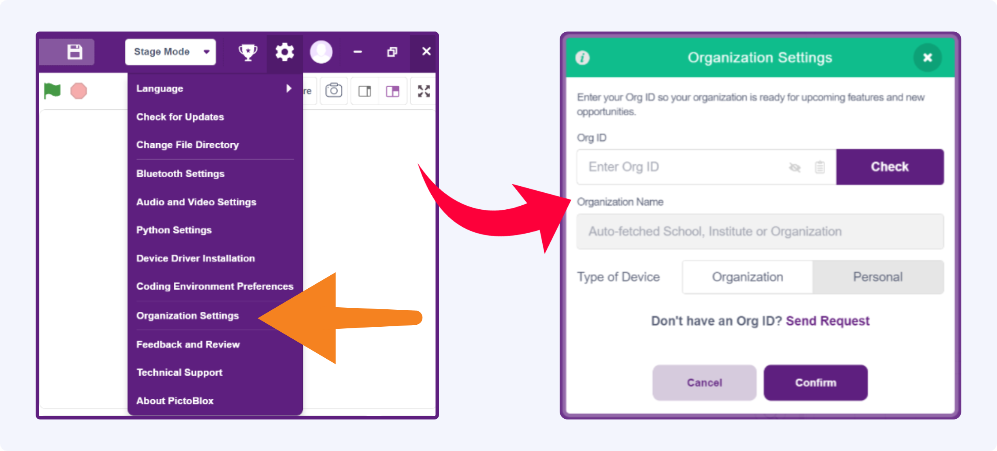
PictoBlox 10.0.0 introduces the Organization ID feature, allowing schools, activity centres, and educational institutions to link their devices to their organization using a unique character ID.
This provides a structured way to register and associate devices within PictoBlox.
How Does Organization ID Work?
1. If Your Organization Already Has an ID
Teachers, administrators, and trainers can open Organization Settings from the PictoBlox Settings menu and enter their existing Organization ID. After entering the ID, users can verify their organization details and specify whether the device is intended for Organization or Personal use.
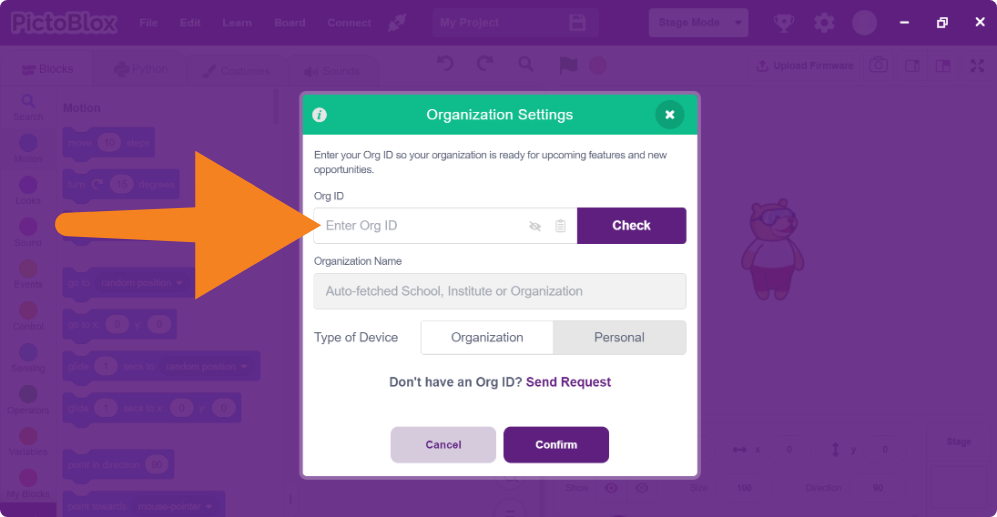
2. If Your Organization Does Not Have an ID
Organizations can request a new Organization ID free of charge using a registered teacher account. The request process includes a short form asking for details such as:
- Organization name and contact information.
- Size of the organization.
- Number of computers or devices.
- Other relevant information for organization verification.
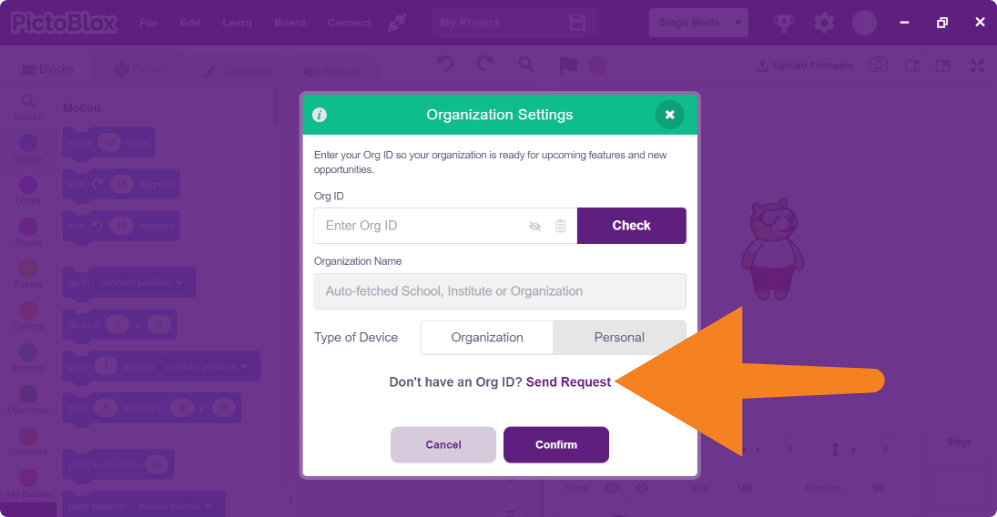
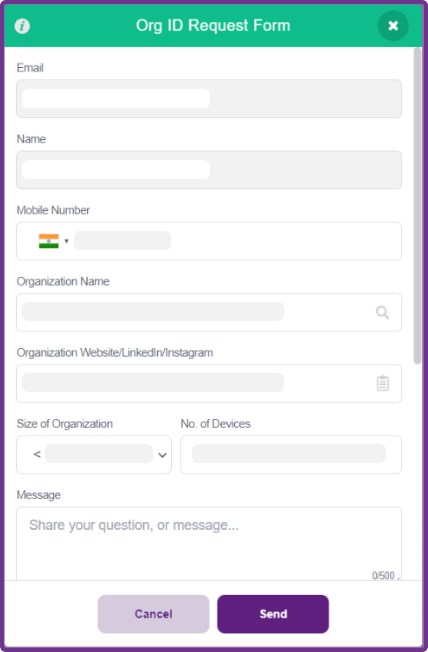
Once the request is verified and an ID is issued, it can be used to associate eligible devices with the organization. For schools introducing coding and robotics across multiple classrooms, this feature provides a more organized way to connect devices to their institution.
New and Expanded PictoBlox Extensions
What can you create when your coding environment can recognize visual markers, communicate with external hardware, follow lines, process sensor data, and even connect multiple users in real time?
PictoBlox 10.0.0 and the associated Quarky and Intellio firmware updates expand the possibilities through additional extensions and hardware integrations.
These extensions allow learners to move beyond basic programming and explore practical applications involving robotics, Artificial Intelligence, communication, automation, and interactive projects.
Several capabilities are available for both Quarky and Quarky Intellio, while others are designed for specific hardware or software environments.
1. AprilTags (Intellio Vision) – Upload Mode
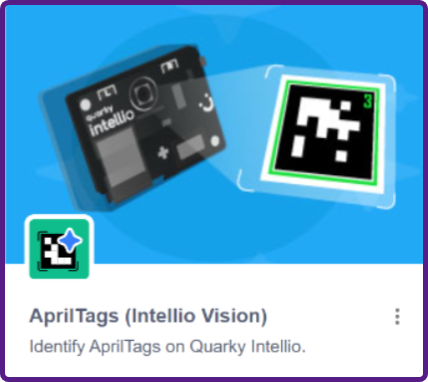
The Intellio-specific extension uses Quarky Intellio’s onboard camera to detect AprilTags after a program has been uploaded to the device.
It supports tag identification, position information, rotation, distance estimation, and related pose measurements.
This enables applications such as robot navigation, location identification, autonomous docking experiments, and visual positioning.
The important difference is where the detection takes place: the universal extension uses the PictoBlox Stage Mode workflow, while Intellio Vision performs the supported processing directly on Intellio.
Explore the documentation:
2. I2C Communication
I2C (Inter-Integrated Circuit) is a communication protocol that allows multiple electronic devices to exchange information using two signal lines: SDA (Serial Data) and SCL (Serial Clock).
The new I2C Communication extensions bring additional hardware communication capabilities to both Quarky and Quarky Intellio.
2.1 Quarky I2C Communication
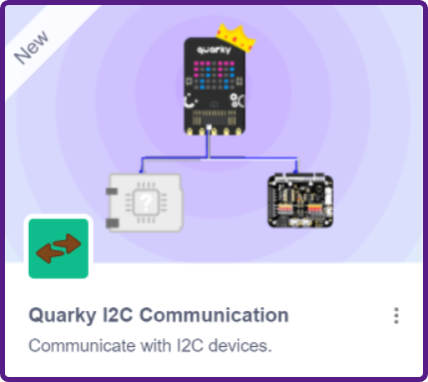
Quarky can operate as an I2C Master, communicating with compatible sensors, expansion boards, Intellio, and other I2C devices.
Users can scan connected devices, check their addresses, send data, and read responses.
Explore the documentation:
2.2 Quarky Intellio I2C Communication
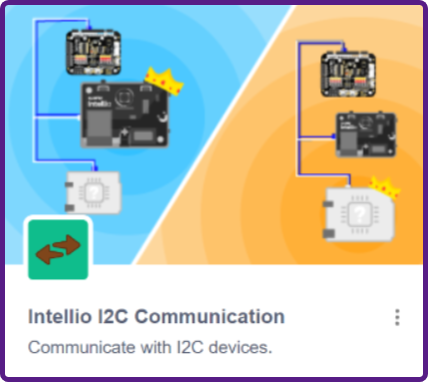
Quarky Intellio supports both I2C Master and Slave operations in its extension.
This allows Intellio to initiate communication with connected devices or respond to another Master when configured as a Slave.
For example, a Quarky board can send a command to Intellio, or Intellio can communicate with multiple compatible sensors through the same I2C bus.
These features help students explore the fundamentals of connected electronics, embedded communication, and multi-device robotics systems.
Explore the documentation:
3. 5CH IR Line Sensor Array
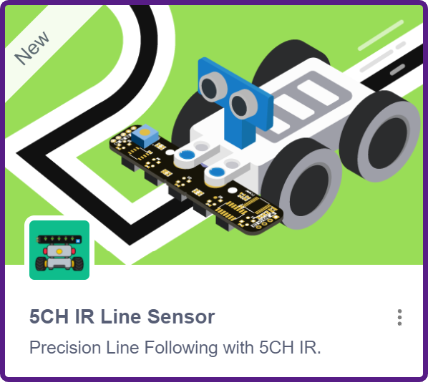
The 5CH IR Line Sensor Array Extension allows Quarky and Quarky Intellio to follow predefined tracks using five infrared sensors.
Each sensor detects the position of a line beneath the robot. The extension uses these readings to determine when the robot should move forward, adjust its direction, or turn at an intersection.
It introduces capabilities such as:
- Reading individual and combined IR sensor values.
- Adjusting forward and turning speeds.
- Detecting checkpoints along a track.
- Navigating junctions.
- Performing standard line following.
- Using PID-based adaptive feedback for smoother corrections.
For example, students can build a robot that follows a black line, identifies checkpoint markings, and automatically stops at a designated location.
The extension provides a practical introduction to autonomous navigation, sensor feedback, and motor control.
4. Advanced Sensors
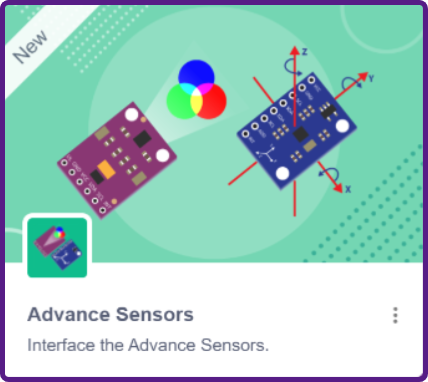
The Advanced Sensor extensions for Quarky, Quarky Intellio, and compatible Arduino boards expand hardware compatibility, allowing users to connect and explore a wider range of external sensors in their PictoBlox projects.
The firmware update adds support for additional sensor modules, allowing learners to investigate environmental conditions, movement, location, distance, and electrical measurements.
Here are some of the supported sensor categories and their practical applications.
| Sensor | Example Module | What It Enables |
| Current Sensor | INA219 | Measure current and voltage for power monitoring |
| Weather Sensor | BME280 | Measure temperature, humidity, and atmospheric pressure |
| LiDAR Sensor | YDLIDAR X2 | Explore scanning and distance measurement |
| GPS Sensor | NEO-6M | Obtain location information and coordinates |
| Gyroscope Sensor | MPU6050 | Measure angular motion and orientation-related data |
| Distance Sensor | VL53L0X | Detect objects using time-of-flight distance measurement |
These sensors create opportunities for projects such as smart power monitors, environmental data stations, location trackers, motion-responsive systems, and obstacle-detection robots.
For example, students can use a weather sensor to monitor environmental changes or a distance sensor to create a robot that reacts when an obstacle is detected.
The available sensor blocks and supported modes depend on the selected board and module.
Explore the documentation:
5. Intellio TFT Display
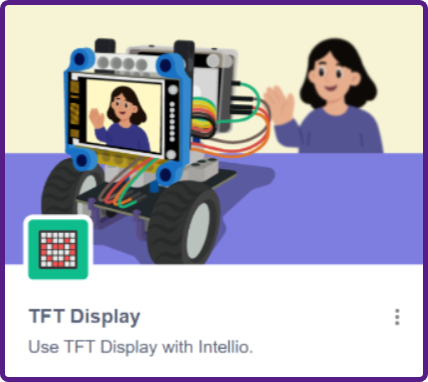
The Intellio TFT Display Extension provides programming functions for working with a compatible TFT display connected to Quarky Intellio.
Instead of relying only on the computer screen for output, students can use an external display to present information directly through their hardware projects.
A TFT display can be useful for showing sensor readings, messages, status information, and graphical outputs.
For example, learners can explore creating a monitoring interface that displays measurements from connected sensors.
This helps connect programming concepts with visual interfaces commonly used in embedded systems and electronic devices.
New Embedded C++ Board Manager
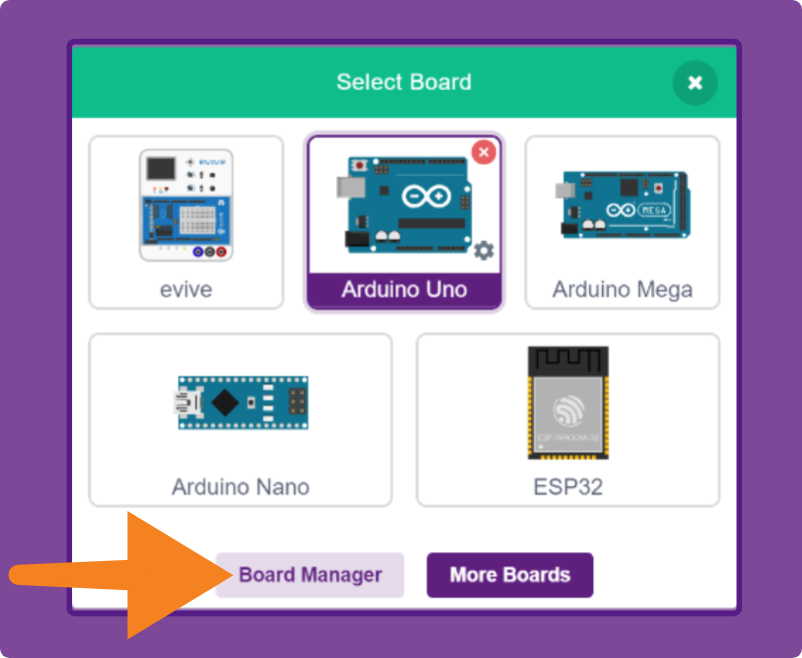
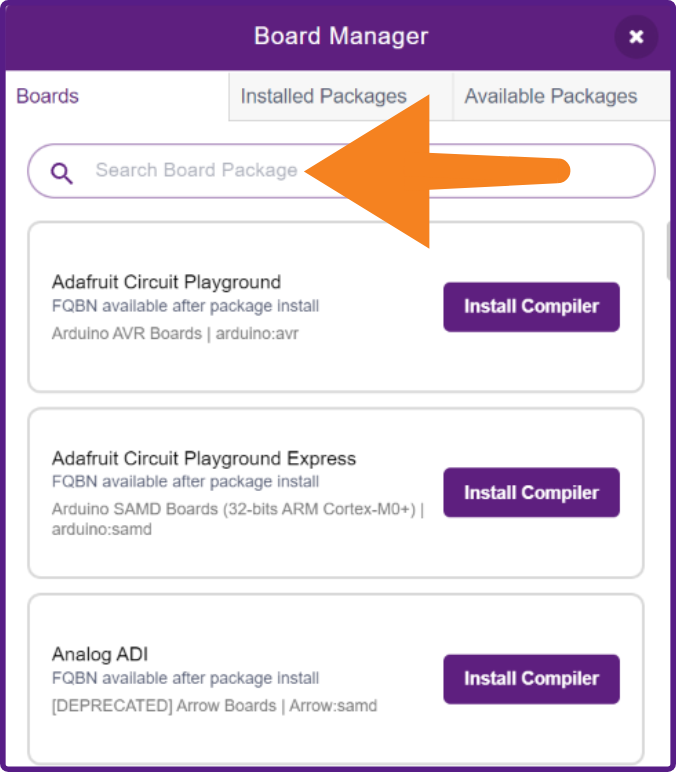
PictoBlox 10.0.0 introduces a new Board Manager in the Embedded C++ environment, allowing users to search for compatible boards, install required compiler packages, and manage hardware programming configurations directly within PictoBlox.
How Does the Board Manager Help?
The Board Manager provides a convenient interface for working with supported Arduino and other compatible development boards.
Users can:
- Search for Boards: Find compatible development boards and their available packages.
- Install Compiler Packages: Download the required compiler and supporting files for the selected board package.
- Manage Installed Packages: View and manage packages that have already been installed.
- Explore More Boards: Access additional boards associated with installed packages without unnecessarily reinstalling the compiler.
The Board Manager includes sections such as Boards, Installed Packages, and Available Packages, making it easier to find and manage the required tools.
For example, a student working with one Arduino board can install its supported package and later explore other compatible boards through the More Boards option. This simplifies the process of configuring hardware development tools while keeping the programming workflow within PictoBlox.
The feature works alongside other Embedded C++ tools, including the Serial Monitor, Serial Plotter, and Library Manager.
Embedded C++ Examples for Every Board
Writing a program from scratch is one way to learn, but experimenting with an existing example can help users understand new hardware more quickly.
PictoBlox 10.0.0 expands the Arduino Examples Library in the Embedded C++ environment, giving users access to ready-made programs and example code associated with supported board packages.
Explore Examples for Installed Board Packages
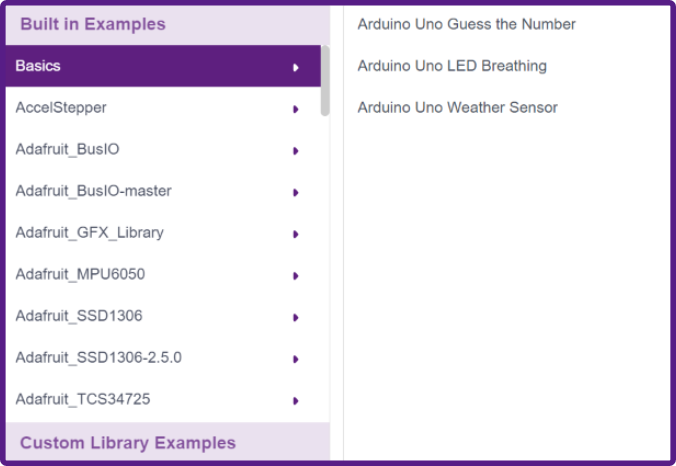
When users download and install a supported board package through the Embedded C++ Board Manager, they can also access the examples provided for that board package and its associated libraries.
This means users are not restricted to a fixed collection of Arduino examples. The available examples can expand according to the board packages and libraries installed in PictoBlox.
The Examples interface organizes available code under relevant packages and libraries, helping users locate a suitable starting point for their hardware.
Learn by Exploring and Modifying Code
Learners can open ready-made programs, understand how they work, and modify the code to create their own projects. From basic LED control to sensor and communication examples, these resources help users explore programming concepts and hardware functionality without starting from scratch.
Arduino Block Coding with PictoBlox – UNO R4 Minima, UNO R4 WiFi & Alvik
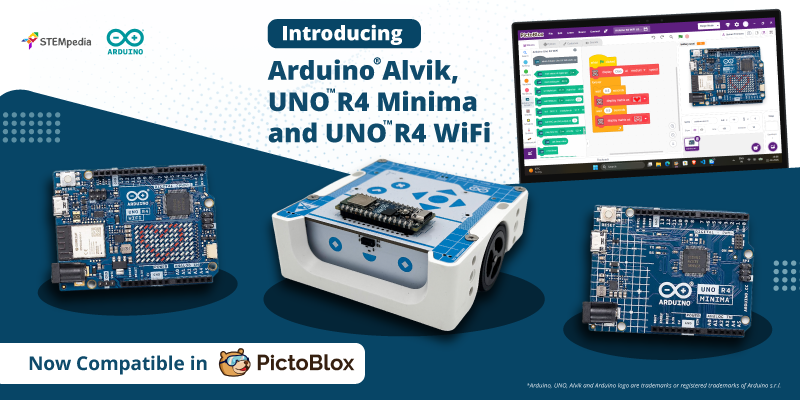
One of the major highlights of PictoBlox 10.0.0 is the expanded Arduino compatibility. Through the collaboration between STEMpedia and Arduino, block coding support has been added for Arduino UNO R4 Minima, UNO R4 WiFi, and Arduino Alvik.
The new integrations allow learners to explore electronics, robotics, and physical computing through familiar visual programming blocks.
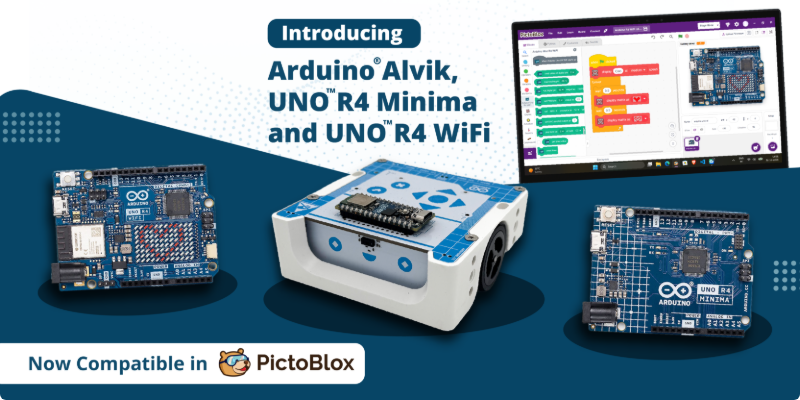
Each board offers different opportunities for hands-on experimentation.
Arduino Alvik
The Arduino Alvik is an educational robot that combines motors, sensors, and an onboard controller in one ready-to-use robotic platform. With PictoBlox block coding support, learners can investigate how a robot detects its surroundings and responds to programming instructions.
Arduino UNO R4 Minima
The Arduino UNO R4 Minima is a 32-bit development board powered by the Renesas RA4M1 microcontroller. Using PictoBlox block coding, learners can experiment with LED control, sensor-based alerts, servo movement, and electronic automation.
Arduino UNO R4 Wi-Fi
The Arduino UNO R4 Wi-Fi combines the Renesas RA4M1 microcontroller with an onboard ESP32-S3 communication module, providing built-in Wi-Fi and Bluetooth BLE connectivity. This allows the board to communicate wirelessly with compatible devices over Bluetooth without requiring an external module.
With PictoBlox, learners can explore projects involving electronic outputs, sensor data, visual displays, and supported wireless interactions.
For a detailed explanation of the supported boards, hardware specifications, programming modes, and projects, read Introducing Arduino Alvik and UNO R4 Support in PictoBlox 10.0.0.
Edit and Save .ino, .py, and .ipynb Files Directly in PictoBlox
Have an Arduino sketch or Python program that you started in another development environment?
PictoBlox 10.0.0 introduces improved file compatibility, allowing users to directly open, edit, and save .ino, .py, and .ipynb files through their compatible programming environments.
This makes it easier to continue existing projects and work with commonly used programming file formats.
| File Format | Used For | How It Helps |
| .ino | Arduino Sketch | Work with Arduino programming files |
| .py | Python Script | Open, modify, and save Python programs |
| .ipynb | Jupyter Notebook | Continue notebook-based Python projects |
Work Across Different IDEs
With support for these formats, users can move supported code files between PictoBlox and other compatible development environments.
For example, a learner can open an Arduino sketch created in Arduino IDE, modify the code in the compatible PictoBlox environment, and save it again in the .ino format.
Similarly, Python files can be opened and edited in PictoBlox or other Python development tools that support the same file format.
This helps users:
- Continue projects created in other IDEs.
- Reuse code without manually recreating entire scripts.
- Experiment with different programming tools.
- Save projects in widely supported formats.
- Maintain compatible source files across development environments.
The key advantage is flexibility: learners can choose the programming environment that suits their project while continuing to work with supported code files.
File compatibility does not automatically guarantee that every library or project will run unchanged across IDEs; the relevant dependencies and hardware configurations must also be available.
Getting Started Is Now Easier Across PictoBlox Environments
Every learner begins coding at a different level. Some are exploring programming for the first time, while others are ready to experiment with Python or Machine Learning. PictoBlox 10.0.0 introduces an enhanced Getting Started experience across four programming environments, providing a more guided way to explore the platform.
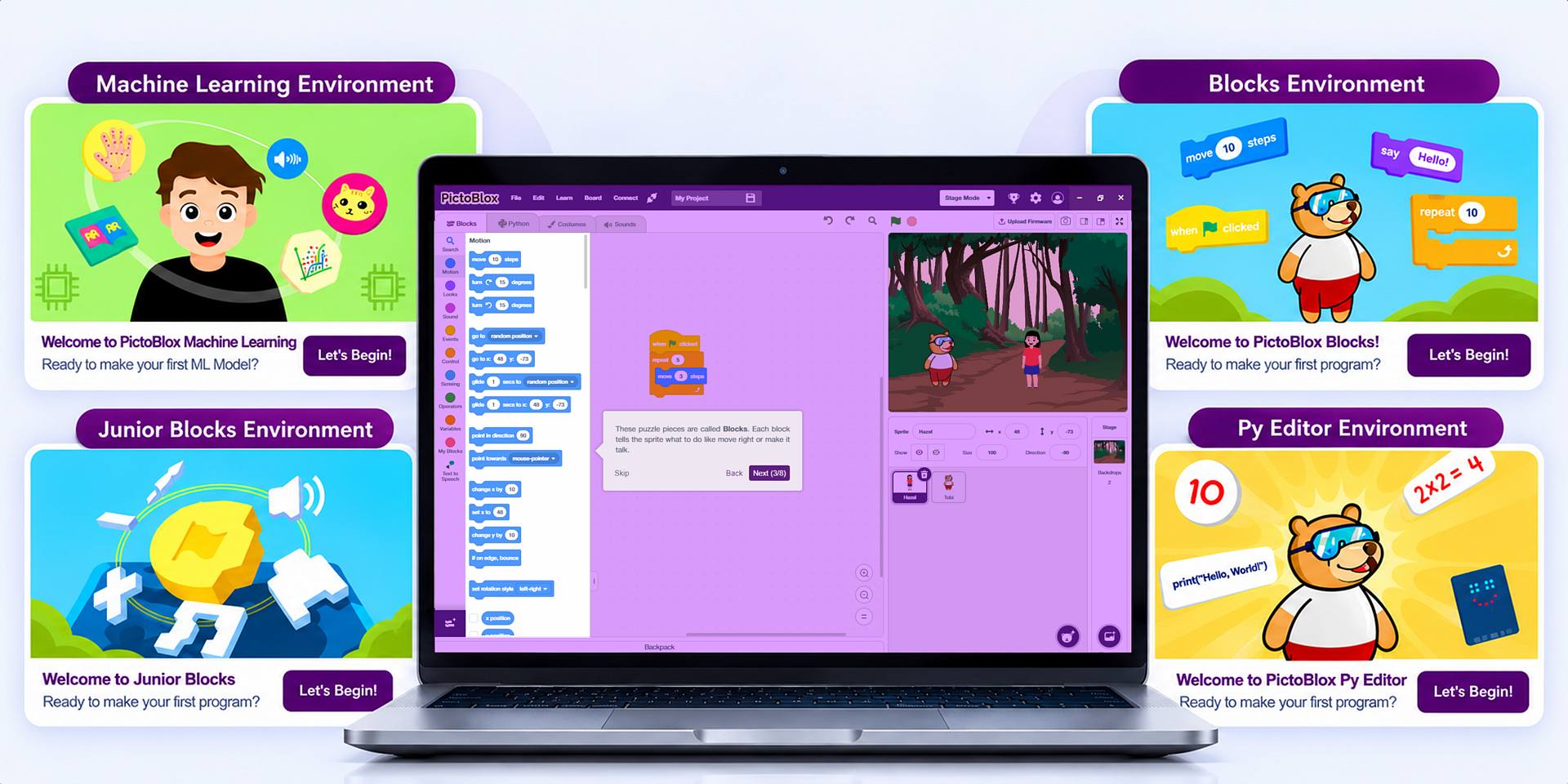
The new onboarding resources include step-by-step instructions and interactive activities to help users become familiar with the software.
| Environment | What Learners Can Explore |
| Blocks | Visual programming, coding blocks, sequences, and interactive projects |
| Junior Blocks | Beginner-friendly coding activities and programming through play |
| Py Editor | Writing, running, and modifying Python programs |
| Machine Learning | Preparing data, training models, and exploring predictions |
Learn Through Guided Activities
Instead of exploring an unfamiliar programming interface without direction, first-time users can follow structured activities that introduce important features.
These guides help learners understand where different tools are located, how to use them, and how to begin creating projects.
For example, a beginner exploring the Blocks environment can learn how to arrange programming blocks, control sprites, and develop a simple interactive program.
Progress from Learning to Creating
The Getting Started experience is designed to encourage gradual progress. Learners can begin with fundamental activities, explore additional features, and move towards more independent projects as their confidence develops.
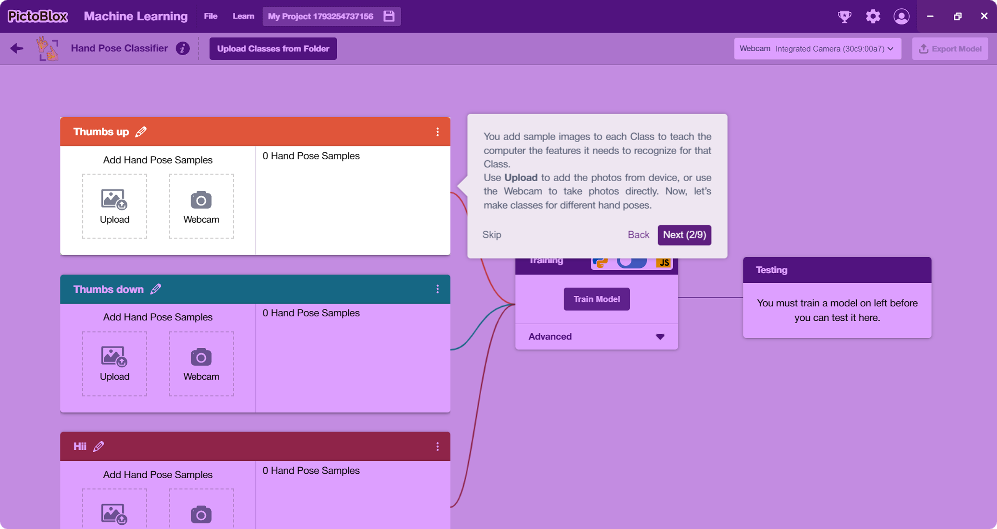
This is useful for students learning on their own, teachers introducing new coding environments, and beginners who want a clear starting point.
Explore 40+ New Examples & Improved Documentation in PictoBlox
Learning becomes more engaging when users can explore working projects and experiment with their programming. Building on the existing PictoBlox Examples Library, version 10.0.0 introduces 40+ new examples across different environments and hardware applications. These additions provide more starting points for users who want to learn programming concepts, understand extensions, and create projects.
What’s New in the Examples Library?
The expanded collection includes:
- New examples for recently introduced extensions.
- Additional Python examples for selected projects previously available only in block coding.
- Arduino example programs accessible through the supported programming environments.
- More opportunities to explore coding, electronics, robotics, and interactive applications.
For example, users can open a sensor-based project, examine its existing blocks, change the conditions, and introduce new outputs to develop their own variation.
This encourages learners to move beyond simply running an example and begin experimenting with how the program works.
Extension Documentation and Related Examples
PictoBlox 10.0.0 also improves access to documentation and learning resources.
- Extension Documentation explains the purpose of an extension and its available blocks.
- Related Examples help users discover practical applications associated with the extension.
- Example Documentation provides additional information to help learners understand and work with selected ready-made projects.
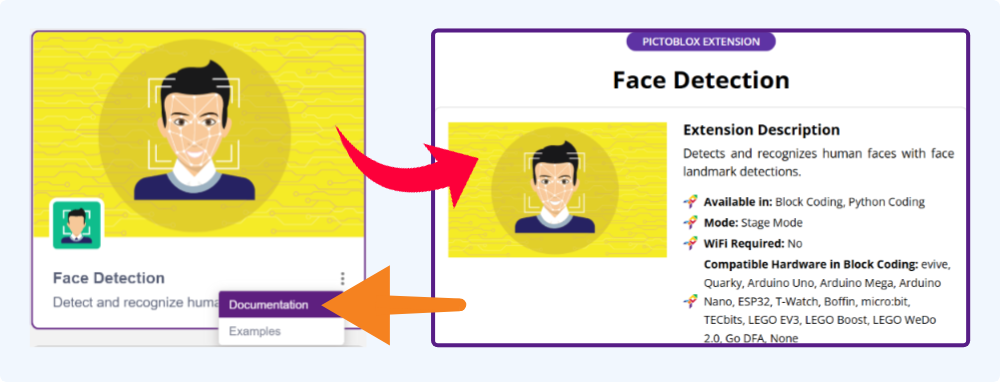
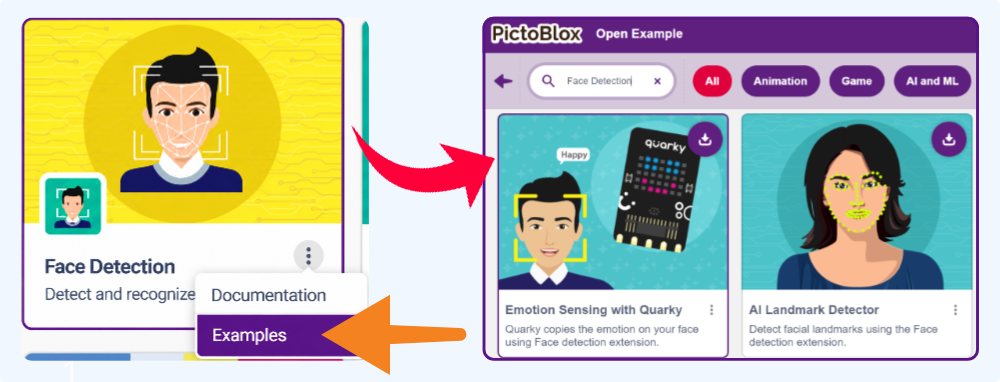
These resources create a connected learning process:
Discover an Extension → Understand Its Blocks → Explore Related Examples → Modify the Code → Build Your Own Project
For educators, this provides useful reference material when introducing new programming concepts. For learners, it offers more ways to experiment and build on existing projects.
Cleaner and More Organised Interface in PictoBlox
Building on its existing coding and robotics capabilities, PictoBlox 10.0.0 introduces a more streamlined and organised experience. The update includes improvements to user profiles, navigation, and notifications, helping users access relevant tools and guidance while working on their projects.
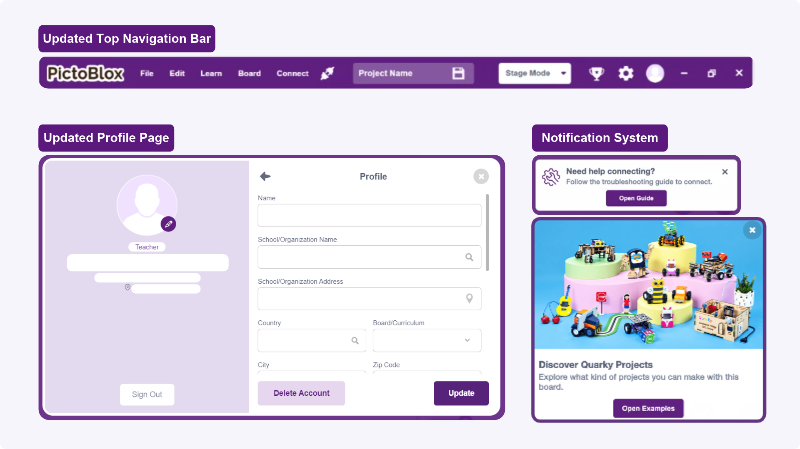
1. Updated Profile Page
The redesigned profile page makes it easier to review and update account information within PictoBlox. Depending on the account, users can manage details such as their name, school or organisation, location, and other relevant profile information.
These improvements make the profile interface more convenient for individual users and educators.
2. Notifications System
PictoBlox 10.0.0 introduces an enhanced notification system that delivers timely and relevant information in a clear, organised way. The notification experience uses pop-ups and toast messages, to help users find relevant updates and guidance.
In this version, the implemented guidance focuses on three key areas:
- Quarky Board Troubleshooting: Provides relevant information to help users identify and resolve supported board connection and setup issues.
- Extension Documentation and Related Examples: Helps users discover extension documentation, understand available functionality, and explore corresponding projects.
- Examples Documentation Guidance: Directs users towards information that helps them understand and experiment with ready-made examples.
These improvements are particularly useful for beginners who are exploring PictoBlox extensions or connecting a Quarky board for the first time.
3. Updated Top Navigation Bar
PictoBlox 10.0.0 also introduces a redesigned top navigation bar.
The navigation bar now includes window control options (minimize, maximize, and close) directly in the main toolbar. Frequently used options such as File, Edit, Learn, Board, and Connect remain available in a refreshed layout. By combining system controls with PictoBlox features into one unified bar, the interface offers a cleaner and more cohesive workspace with maximized screen space.
This also helps users switch between different programming tasks while keeping essential controls easily accessible
Quarky Intellio Camera Support in Machine Learning and 3D and XR Environments
Imagine using a robot’s camera to collect images for a Machine Learning model or create an interactive XR experience. PictoBlox 10.0.0 expands Quarky Intellio camera support into the Machine Learning and 3D and XR environments, connecting camera input with additional programming workflows.
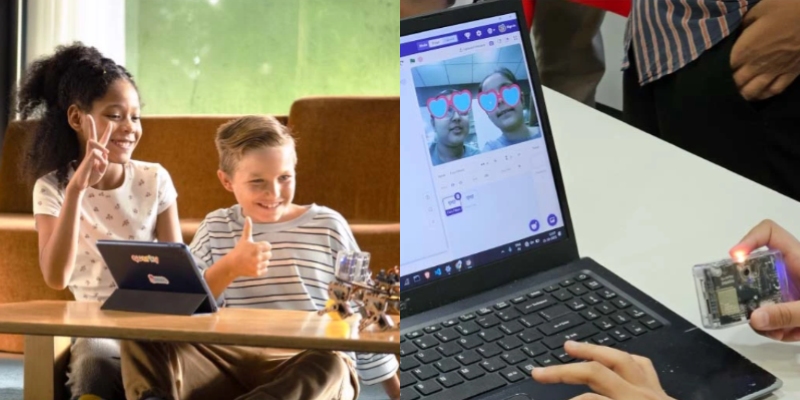
Train Machine Learning Models Using Intellio Camera
In the Machine Learning environment, supported Intellio camera input can be used to collect visual data for model training and testing.
For example, students can capture images of different objects, organise them into categories, and train a model to recognise those categories.
This provides an opportunity to explore how Machine Learning models learn from examples using data collected through physical hardware.
Quarky Firmware 7.0 – Improved Hardware Control and Communication
Alongside the PictoBlox software improvements, Quarky Firmware 7.0 introduces additional hardware functionality and important communication fixes.
The new 5CH IR Line Sensor Array, Lightning, I2C Communication, and expanded Advanced Sensor capabilities have been covered in the extension section above.
Beyond these integrations, the firmware introduces improvements to servo control and Quarky Connect communication.
- Servo Speed Control: A new servo movement block allows users to specify a speed parameter for supported servo operations.
- Improved Quarky Connect Communication: The firmware addresses command-handling issues affecting Quarky Connect.
These updates help maintain more reliable communication during supported motor-control and expansion-board operations.
Please refer to this Quarky Firmware Troubleshooting guide for updating Quarky to the new firmware.
Quarky Intellio Firmware 2.0.0 – Camera, Audio and Standalone Programming Improvements
Quarky Intellio Firmware 2.0.0 expands the capabilities of Intellio through additional Upload Mode functionality, communication improvements, and new features for working with camera and audio data.
In addition to the new extensions described earlier, the firmware introduces several practical features.
- Expanded Upload Mode Support: Upload Mode allows compatible programs to run directly on Intellio after they have been uploaded.
- Enhanced Serial and BLE Communication: The firmware improves Serial and Bluetooth Low Energy (BLE) communication support across multiple Intellio components and extensions.
- Continuous Camera Streaming with HTTP and UDP: New camera streaming blocks support HTTP and UDP communication for compatible Upload Mode projects.
- Direct Audio Playback Without an SD Card: The firmware introduces functionality for playing compatible audio directly on Intellio from PictoBlox without requiring an SD card for the supported playback workflow.
- Serial Printing in Upload Mode: The firmware adds support for printing information through serial communication while compatible uploaded programs run. This is useful for monitoring values, debugging projects, and examining sensor readings during hardware operation.
- Wi-Fi Connection Status: A new block allows users to check whether Intellio is connected to Wi-Fi. For example, a program can check the connection status before performing a network-dependent action. This helps users introduce connection checking into supported IoT and communication-based projects.
- Weather Data Support in Upload Mode: The firmware also introduces support for the Weather Data Extension in compatible Upload Mode projects. This allows users to incorporate weather-related information into supported standalone applications.
Please refer to this Quarky Intellio Firmware Troubleshooting guide for updating Quarky Intellio to the new firmware.
What Can You Build with PictoBlox 10.0.0?
The most exciting part of any software update is discovering what you can create with the new features.
With expanded Arduino compatibility, new extensions, additional sensors, and improved programming workflows, PictoBlox 10.0.0 offers more opportunities for practical experimentation.
Here are some project ideas inspired by the update.
| Project Idea | Hardware / Environment | Learning Concept |
| LED Brightness Controller | Arduino UNO R4 WiFi | PWM and wireless control |
| LED Matrix Message Display | Arduino UNO R4 WiFi | Visual output programming |
| Smart Power Monitor | Compatible Current Sensor | Electrical measurements |
| Environmental Monitoring Station | Weather Sensor | Sensor data collection |
| GPS Location Tracker | Compatible GPS Module | Location and coordinates |
| Obstacle Detection System | LiDAR or Distance Sensor | Distance measurement |
| Line Following Robot | Quarky / Intellio with 5CH IR Array | Robot navigation |
| AprilTag Recognition Project | Intellio Vision | Computer vision |
| Multiplayer Quiz | Cloud Variable Extension | Shared data and real-time interaction |
| Image Classification Project | Teachable Machine | Machine Learning |
| Camera Image Recorder | Intellio with SD Card | Image capture and storage |
These are suggested applications rather than a list of guaranteed built-in examples. Each project should use compatible hardware, available blocks, and supported programming modes.
Beginners can start with simple LED and sensor projects, while more experienced learners can explore robotics navigation, Machine Learning, hardware communication, and connected systems.
Why PictoBlox 10.0.0 Matters for Students, Educators and Makers
PictoBlox 10.0.0 brings together improvements that support different levels of programming and practical technology learning.
- For First-Time Users: The Getting Started experience provides guided activities that help beginners explore coding environments and create their first projects.
- For Students: New examples, extensions, and hardware integrations create opportunities to explore programming through practical activities.
- For Educators: Improved documentation, guided onboarding, and additional example projects support classroom teaching and hands-on learning. The new Organization ID feature also allows schools and activity centres to link their devices to their institution using a unique Org ID.
- For Makers: The Embedded C++ Board Manager, expanded Arduino support, and file compatibility features allow users to experiment with different development boards and programming tools.
- For Robotics Enthusiasts: New Quarky and Intellio firmware capabilities offer more ways to work with sensors, motor control, vision systems, communication, and standalone robotics projects.
From basic coding concepts to increasingly advanced hardware applications, these features provide learners with more opportunities to turn ideas into working creations.
In a Nutshell
PictoBlox 10.0.0 brings more ways to learn, experiment, and turn ideas into real-world projects.
With expanded Arduino UNO R4 and Alvik support, 40+ new examples, improved Getting Started resources, a new Embedded C++ Board Manager, and additional extensions, the update gives learners more opportunities to explore programming and hardware development.
Quarky Firmware 7.0 adds new sensor and robotics capabilities, while Quarky Intellio Firmware 2.0.0 expands camera, audio, communication, and standalone programming functionality.
Whether you’re creating your first coding project, exploring Machine Learning, or developing advanced robotics applications, PictoBlox offers a connected environment for learning and experimentation.
Ready to explore PictoBlox 10.0.0?
Visit the official PictoBlox Download page and discover what you can create next.
Frequently Asked Questions
1. What is new in PictoBlox 10.0.0?
Answer: PictoBlox 10.0.0 introduces 40+ new examples, improved Getting Started resources, expanded Arduino support, a new Embedded C++ Board Manager, additional sensor integrations, file compatibility improvements, and updated user-interface features.
2. Which new Arduino boards are supported in PictoBlox 10.0.0?
Answer: The update adds block coding support for Arduino UNO R4 Minima, UNO R4 WiFi, and Arduino Alvik.
3. Can beginners use PictoBlox 10.0.0?
Answer: Yes. The Getting Started experience provides guided learning activities across Blocks, Junior Blocks, Py Editor, and Machine Learning, helping first-time users become familiar with the software.
4. What is the Embedded C++ Board Manager?
Answer: The Board Manager allows users to search for compatible development boards, install required compiler packages, and manage supported boards within PictoBlox.
5. Can I open Arduino and Python files created in other IDEs?
Answer: Yes. The update introduces support for opening, editing, and saving .ino, .py, and .ipynb files in compatible PictoBlox environments. Required libraries and configurations must also be available for the code to run.