What if you could build a robot that navigates obstacles, controls electronic devices with hand gestures, or displays live sensor readings on an LED matrix, all with beginner-friendly block coding?
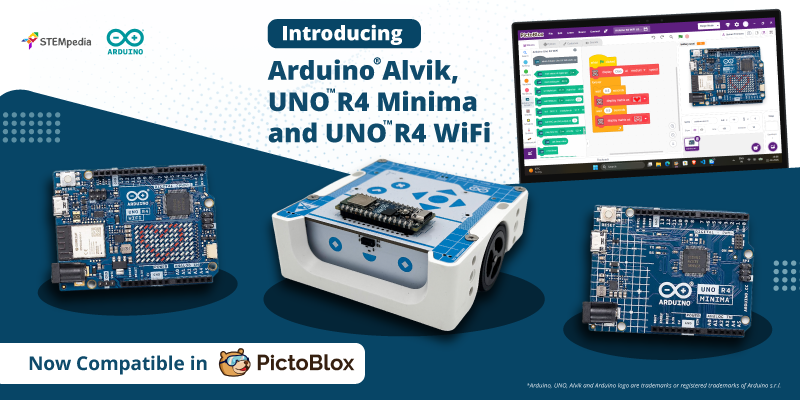
With PictoBlox 10.0, these possibilities expand with three new Arduino boards: Arduino Alvik, Arduino UNO R4 Minima, and Arduino UNO R4 WiFi.
The new integrations are designed to bring robotics, electronics, AI, and Machine Learning closer together in a common programming environment. Students can experiment with connected hardware in Stage Mode, develop standalone projects in Upload Mode, and explore physical computing through sensors, actuators, and displays.
The update also introduces support for Dabble-based projects using the UNO R4 boards, helping connect smartphone inputs with hardware applications.
Ready to explore the new possibilities? Check out the latest version of PictoBlox and start building with Arduino, AI, robotics, and physical computing.
What’s New in PictoBlox 10.0?
PictoBlox continues to evolve as an integrated learning platform for Coding, Artificial Intelligence, robotics, and creative computing.
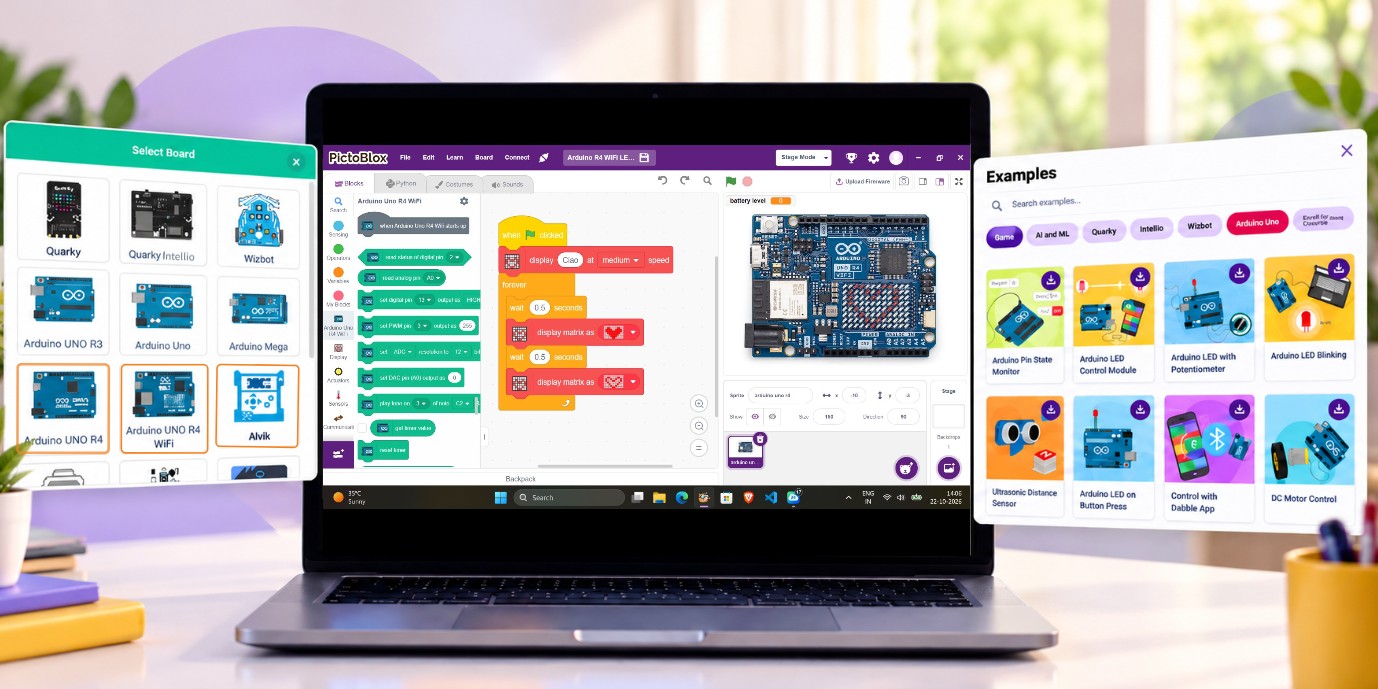
The PictoBlox 10.0 update introduces new hardware integrations alongside improvements designed to make learning, programming, and project development more convenient.
- Expanded Hardware Support: New Arduino board integrations, an Embedded C++ Board Manager, and additional board-specific examples extend the available hardware programming options.
- 40+ New Examples and Learning Resources: New examples, improved documentation, and Getting Started resources help users explore projects across Blocks, Junior Blocks, Python, and Machine Learning environments.
- Improved Project Workflow: Updates include direct support for opening and saving .ino, .py, and .ipynb files, a redesigned top navigation bar, profile enhancements, and organisation-related features.
- Advanced Sensor Integration: Additional sensor support for compatible Quarky and Arduino projects includes current monitoring, weather measurement, LiDAR, GPS, gyroscope, and distance sensing.
- New Learning and Troubleshooting Features: Board troubleshooting notifications, enhanced example documentation, and Intellio camera streaming support in the Machine Learning and XR environments are included in the release brief.
Among these updates, one of the most useful additions for hardware-based learning is support for Arduino Alvik and the UNO R4 family.
To see how PictoBlox has evolved, explore the PictoBlox 9.1.0 software update.
Meet the Three New Arduino Boards in PictoBlox
Each newly supported board offers a different learning experience, from ready-to-program robotics to electronic prototyping and connected applications.
1. Arduino Alvik – Explore Robotics and Intelligent Movement
Arduino Alvik is an educational robot for learning programming, robotics, and automation. Unlike a bare development board, it combines motors, sensors, and a controller in one ready-to-use platform, powered by an Arduino Nano ESP32 and an onboard STM32 controller.
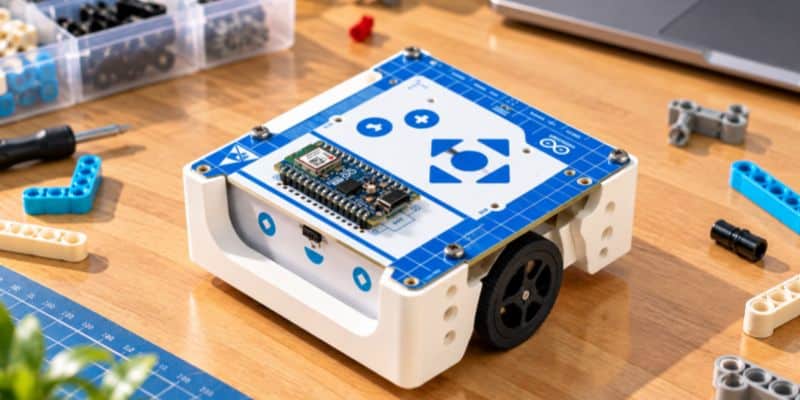
Its key features include:
- Built-in DC motors with encoders for controlled movement.
- Time-of-Flight distance sensor for obstacle detection.
- Three-element line-following sensor array.
- Colour and ambient light sensing.
- Six-axis accelerometer and gyroscope.
- Seven touch buttons, RGB LEDs, and servo connections.
In PictoBlox, students can see how these parts work together, for example, by building a robot that follows a track, detects obstacles, or changes behaviour based on sensor readings.
Best suited for: robotics, navigation, and sensor-based automation.
Explore the Arduino Alvik User Manual for more information.
2. Arduino UNO R4 Minima – Create Smart Electronic Projects
The Arduino UNO R4 Minima is a 32-bit development board powered by the Renesas RA4M1 microcontroller.
It retains the familiar Arduino UNO form factor while providing improved processing capabilities, memory, and hardware features.
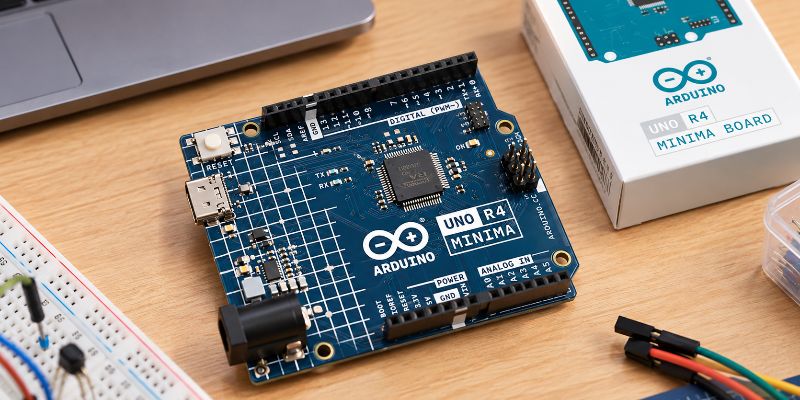
The board includes:
- 14 digital input/output pins.
- Six analogue inputs.
- PWM outputs for suitable components.
- A 12-bit digital-to-analogue converter (DAC).
- USB-C connectivity.
- Interfaces for communicating with external devices.
UNO R4 Minima does not have built-in Wi-Fi or Bluetooth. External communication modules are required for wireless applications. Students can use PictoBlox to read sensors, control LEDs, operate servos, and build simple automation.
Best suited for: electronics, prototyping, and beginner-friendly automation.
Explore the Arduino UNO R4 Minima for purchase and hands-on experience.
3. Arduino UNO R4 WiFi – Combine Electronics with Connected Projects
The Arduino UNO R4 WiFi combines the Renesas RA4M1 microcontroller with an ESP32-S3 communication module.
It offers many of the same electronic prototyping capabilities as the Minima while adding wireless connectivity and an integrated display.
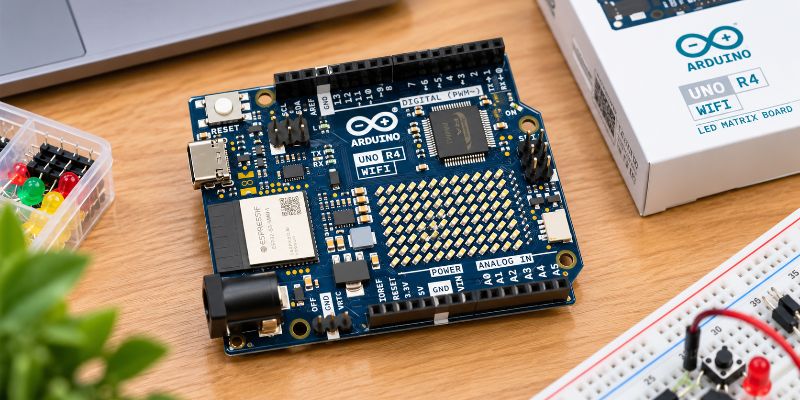
Key features include:
- Wi-Fi and Bluetooth Low Energy hardware.
- Built-in 12 × 8 LED matrix.
- Digital and analogue input/output.
- Real-time clock and DAC.
- USB-C programming connectivity.
The built-in LED matrix is particularly useful for creating visual outputs without connecting an external display.
Students can explore displaying patterns, animations, symbols, and sensor information while developing smart electronic projects.
The board also opens opportunities for connected applications using supported networking tools and libraries.
Best suited for: LED matrix projects, wireless communication, and IoT learning.
Explore the Arduino UNO R4 WiFi for purchase and hands-on experience.
Program Your Arduino Boards in Stage Mode and Upload Mode
One of the main benefits of programming these boards with PictoBlox is the ability to explore two programming approaches.
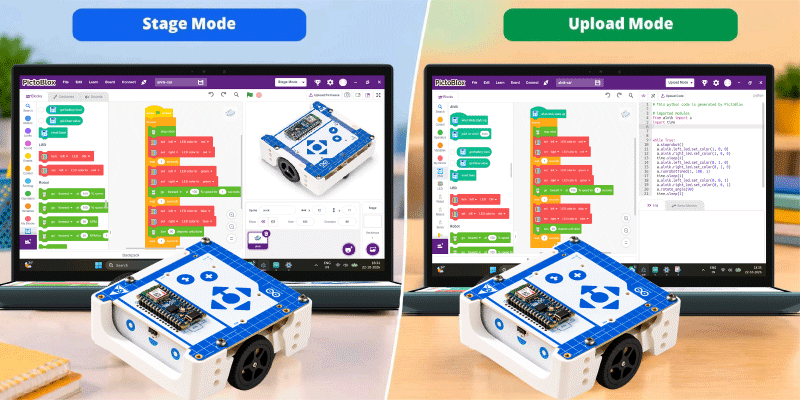
Stage Mode – Control Hardware in Real Time
In Stage Mode, programs run in PictoBlox while the connected board exchanges information with the computer.
Students can read sensor data, control outputs, and combine hardware actions with interactive sprites or other computer-based features.
For example, a student can build a project where the computer detects a hand gesture and instructs a connected robot to move.
This approach is particularly useful for experimentation, interactive robotics, and projects involving computer-based AI processing.
Upload Mode – Make Projects Run Independently
In Upload Mode, compatible programs are compiled and uploaded to the board.
Once uploaded, the board can run the program independently when powered, without needing PictoBlox to stay connected.
For example, students can create an obstacle-avoiding robot or an automatic lighting system that keeps running after they disconnect the programming computer.
The PictoBlox 10.0 integration brief identifies support for both modes across Arduino Alvik, UNO R4 Minima, and UNO R4 WiFi.
Bring AI and Machine Learning to Arduino Projects
What if a robot could respond to your hand gestures? Or an electronic system could react when an AI model identifies an object?
With PictoBlox, students can combine Artificial Intelligence and Machine Learning features with hardware programming to explore these possibilities.
Relevant AI and ML tools include:
- Face Detection: Detect faces through a camera and trigger hardware responses.
- Object Detection: Identify objects and use the results in electronic projects.
- Hand Pose Detection: Track hand movements to control robotic actions.
- Speech Recognition: Interpret spoken commands and control outputs.
- Image Classification: Train models to recognise selected image categories.
- Number Classification and Regression: Use numerical data to classify conditions or predict values.
How Does AI Work with the Arduino Boards?
In a typical Stage Mode project, the computer does the AI processing and sends the resulting command to the board. A webcam can detect a gesture, and Arduino Alvik responds by moving its motors. Students can explore AI and robotics without programming machine-learning algorithms onto the microcontroller.
Important: AI extensions work with these boards in Stage Mode, but those models do not run on the board in Upload Mode.
Control Arduino UNO R4 Boards with the Dabble App
PictoBlox 10.0 also supports using the Dabble app with the UNO R4 Minima and UNO R4 WiFi. Dabble turns a smartphone into a controller, with a gamepad, joystick, phone sensors, and terminal controls.
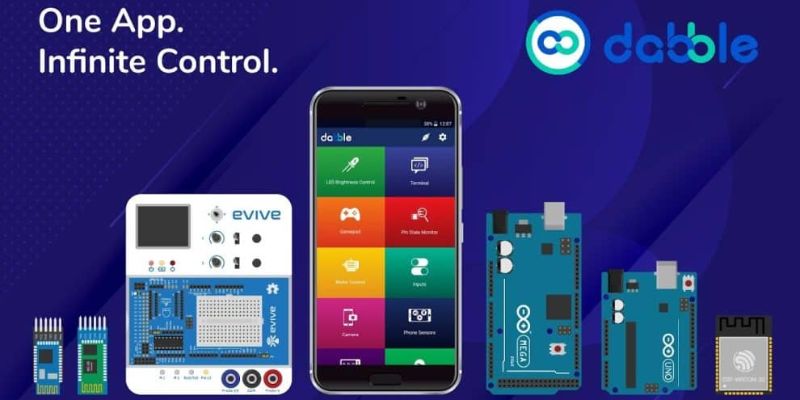
Students can explore:
- Smartphone-Controlled Movement: Use gamepad or joystick inputs to develop a remote-controlled robotic project.
- Sensor-Based Interaction: Use compatible smartphone sensor readings, such as accelerometer input, to control project behaviour.
- Wireless Electronic Control: Send commands from a smartphone to operate suitable electronic outputs.
Explore the Dabble app for fun, learning, and hands-on experience.
Explore Sensors, Actuators, Displays, and Communication
The addition of these boards creates opportunities to understand how physical computing systems interact with their surroundings.
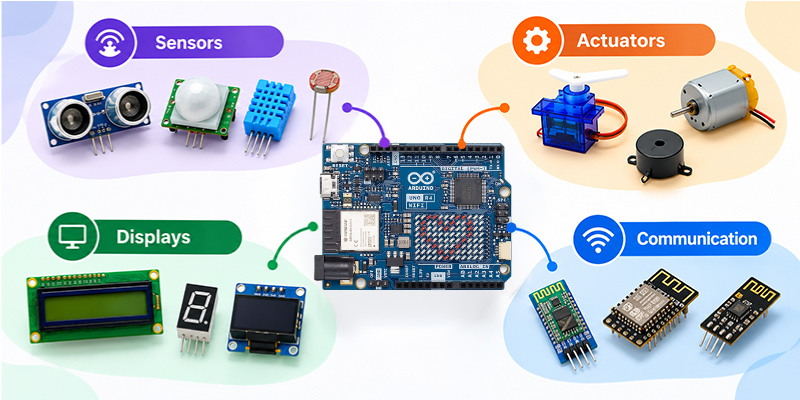
Students can read information through sensors, process it using code, and generate responses through actuators or displays.
Sensors – Give Projects the Ability to Detect
Sensors collect information from the physical world.
Arduino Alvik includes several onboard sensors for detecting distance, colour, movement, and line patterns.
The UNO R4 boards can work with compatible external sensors, including light, temperature, ultrasonic distance, and motion sensors, when the appropriate connections and programming support are available.
For example, students can use a distance sensor to detect nearby objects or a temperature sensor to create an environmental monitoring project.
Actuators – Make Projects Respond
Actuators convert programming instructions into physical actions.
Common examples include:
- DC motors for movement.
- Servo motors for controlled rotation.
- LEDs for visual alerts.
- Buzzers for sound notifications.
- Relays for switching suitable low-voltage circuits.
Alvik includes drive motors, whereas the UNO R4 boards require appropriate external motor-driving hardware for DC motor projects.
Displays – Show Information Visually
Displays help users understand what their projects are doing.
The UNO R4 WiFi includes a 12 × 8 LED matrix, which can display patterns and simple animations.
The boards can also interface with compatible external display modules where the required software support is available.
Communication – Connect Hardware and Software
Arduino boards use communication interfaces to exchange information with computers, sensors, and other devices.
Depending on the board, these include USB, UART, I2C, SPI, and wireless communication.
The UNO R4 WiFi’s onboard communication hardware makes it particularly suitable for exploring connected applications.
Together, these build a complete picture: Sense → Process → Decide → Act.
What Can Students Build with These New Arduino Boards?
The new integrations support a range of educational project ideas, from simple electronics to interactive robotics.
| Board | Suggested Project | What Students Learn |
| Arduino Alvik | Line-Following Robot | Sensors, movement, and decision-making |
| Arduino Alvik | Obstacle-Avoiding Robot | Distance sensing and robot navigation |
| UNO R4 Minima | Automatic Light Controller | Light sensing and electronic outputs |
| UNO R4 Minima | Gesture-Controlled Servo | AI interaction and actuator control |
| UNO R4 WiFi | LED Matrix Animation | Display programming and patterns |
| UNO R4 WiFi | Temperature Display | Sensor data and visual output |
These are suggested educational applications, not a claim that every project is available as a prebuilt PictoBlox example. Hardware requirements and supported blocks should be checked before implementation.
Why These New Board Integrations Matter for STEM Education
Electronics and robotics become more meaningful when students see code act on the physical world. Alvik lets them explore a ready-to-use robot and see how sensors shape movement. The UNO R4 Minima introduces prototyping fundamentals, and the UNO R4 WiFi adds displays and wireless hardware.
PictoBlox brings all three into one familiar environment, so learners can progress from simple block programs to sensor-based automation and AI-assisted projects. For teachers, that means they can teach programming, electronics, and computational thinking through practical classroom activities.
In a Nutshell
The addition of Arduino Alvik, UNO R4 Minima, and UNO R4 WiFi brings new possibilities to hardware programming in PictoBlox.
From sensor-based robotics and electronics to AI-assisted interaction, LED matrix projects, and smartphone control, these integrations help students explore different aspects of physical computing through a common learning platform.
Alongside the wider PictoBlox 10.0 improvements, the new board support is designed to make experimentation, project development, and practical STEM learning more accessible.
Ready to explore?
Get Started with PictoBlox and discover what you can build with Arduino, AI, and robotics.
Frequently Asked Questions
1. What new Arduino boards are being introduced in PictoBlox 10.0?
Answer: The supplied PictoBlox 10.0 release brief identifies Arduino Alvik, Arduino UNO R4 Minima, and Arduino UNO R4 WiFi as newly supported hardware options.
2. Can I use external sensors with these boards?
Answer: Yes. The boards provide interfaces for connecting compatible sensors. Dedicated PictoBlox blocks, supported libraries, and wiring requirements may differ by board and component.
3. Can students use AI and Machine Learning with these boards?
Answer: Yes, the intended integration allows AI and ML features to be combined with connected hardware in Stage Mode. Computer-dependent models should not be assumed to run independently in Upload Mode.
4. What makes Arduino Alvik different from the UNO R4 boards?
Answer: Arduino Alvik is a complete educational robot with integrated motors and sensors. The UNO R4 Minima and WiFi are development boards intended for connecting and programming electronic components.
5. What is the difference between UNO R4 Minima and UNO R4 WiFi?
Answer: UNO R4 Minima provides general electronic prototyping capabilities without built-in wireless connectivity. UNO R4 WiFi adds Wi-Fi/BLE hardware and a built-in 12 × 8 LED matrix.