Coding is a way of telling a computer what to do using clear instructions. When students learn coding, they learn how to think step by step, solve problems, and create things on their own. Python is one of the easiest programming languages to start with because it uses simple words and easy rules.
PictoBlox helps students learn Python in a fun and visual way. Students can write real Python code, create games, work with data, and even explore Artificial Intelligence. In this blog, Python concepts are explained simply so that even a beginner can understand how they work and where they are used.
Getting Started with Python in PictoBlox
Python is a programming language that allows students to give instructions to a computer. These instructions are written in lines of code, and the computer follows them exactly. Python is easy to read, which helps beginners understand what the program is doing.
PictoBlox is a platform that allows students to write Python code and instantly see the results. When students run a program, they can see outputs on the screen, which helps them understand how their code is working. Python in PictoBlox can also be used for advanced projects like Artificial Intelligence, making it a powerful learning tool.
Create a calculator using Python in PictoBlox
Python can be used to perform calculations just like a calculator. The program can accept numbers from the user, perform operations such as addition or subtraction, and display the result.
Computers do not make decisions on their own. They follow the conditions written in the program. For example, the program checks what operation the user wants and then performs it. This idea is called decision-making and is used in almost all real-world software.
Watch the video and follow these steps to build your calculator.
- Open the Python Editor in PictoBlox and create a new Python file.
- Write the code for the calculator asking the users for inputs
- Use conditional statements if, elif, else for the operations.
- Run the program .
- Enter your inputs and select the operation.
- Final results will be displayed on the screen.
Create Games Using Python in PictoBlox
With Python, you can create a fun digital playground where you choose exactly how characters and objects act. Instead of just playing a game made by someone else, you can build the rules for everything on the screen.
One of the best things you can do is give your game “senses” so it knows what is happening while you play. You can set up a way to detect a “touch” between two objects, such as a fruit and a basket.
Watch the video and follow these steps to build your Game.
- Open the Python Editor in PictoBlox and create a new Python file.
- Import the required game libraries and set up the game window.
- Create a basket object at the bottom of the screen and a fruit object at the top.
- Write the code to move the basket left and right using keyboard keys.
- Add logic to make the fruit fall continuously from the top.
- Add a condition to check when the basket catches the fruit.
- Increase the score and reset the fruit position when it is caught.
- Run the program.
- Play the game and observe the score increasing on the screen.
AI and Object Detection with ChatGPT with Python in PictoBlox
Artificial Intelligence allows computers to perform tasks that usually need human intelligence. Object detection helps a computer recognize objects using a camera. This happens because the computer has been trained using many examples.
ChatGPT allows the computer to generate smart text responses. When both are used together, the system can see something and respond intelligently.
Watch the video and follow these steps to build your project
- Open PictoBlox and create a new Python file.
- Connect and set up the camera module in PictoBlox.
- Load the object detection model.
- Write the code to detect objects using the camera feed.
- Add logic to check which object is detected.
- Write code to display or print a response based on the detected object.
- Run the program.
- Show different objects to the camera and observe the response output on the screen.
Learn Machine Learning Concepts with Python in PictoBlox
Machine Learning is a part of Artificial Intelligence where computers learn from data instead of fixed rules. Students give examples to the computer, and the computer learns patterns from them.
is a way to teach computers to think for themselves. Instead of a person writing down every single rule for the computer to follow, the computer looks at lots of examples and figures out its own rules. It is very similar to how you learned to recognize a cat: you saw many cats until your brain understood what a cat looks like.
By using Machine Learning, you can build programs that do amazing things:
- Learning from Examples: You show the computer many different pictures or pieces of information. This is called “Training.”
- Spotting Patterns: The computer looks for tiny details—like shapes or colors—to understand how things are different.
- Making a Guess: After it learns, you can show the computer something brand new. It uses what it learned to make a smart guess about what the object is.
- Getting Better: The more examples you give the computer, the smarter and more accurate it becomes at its job.
Once trained, the machine learning model can recognize or predict things it has not seen before.
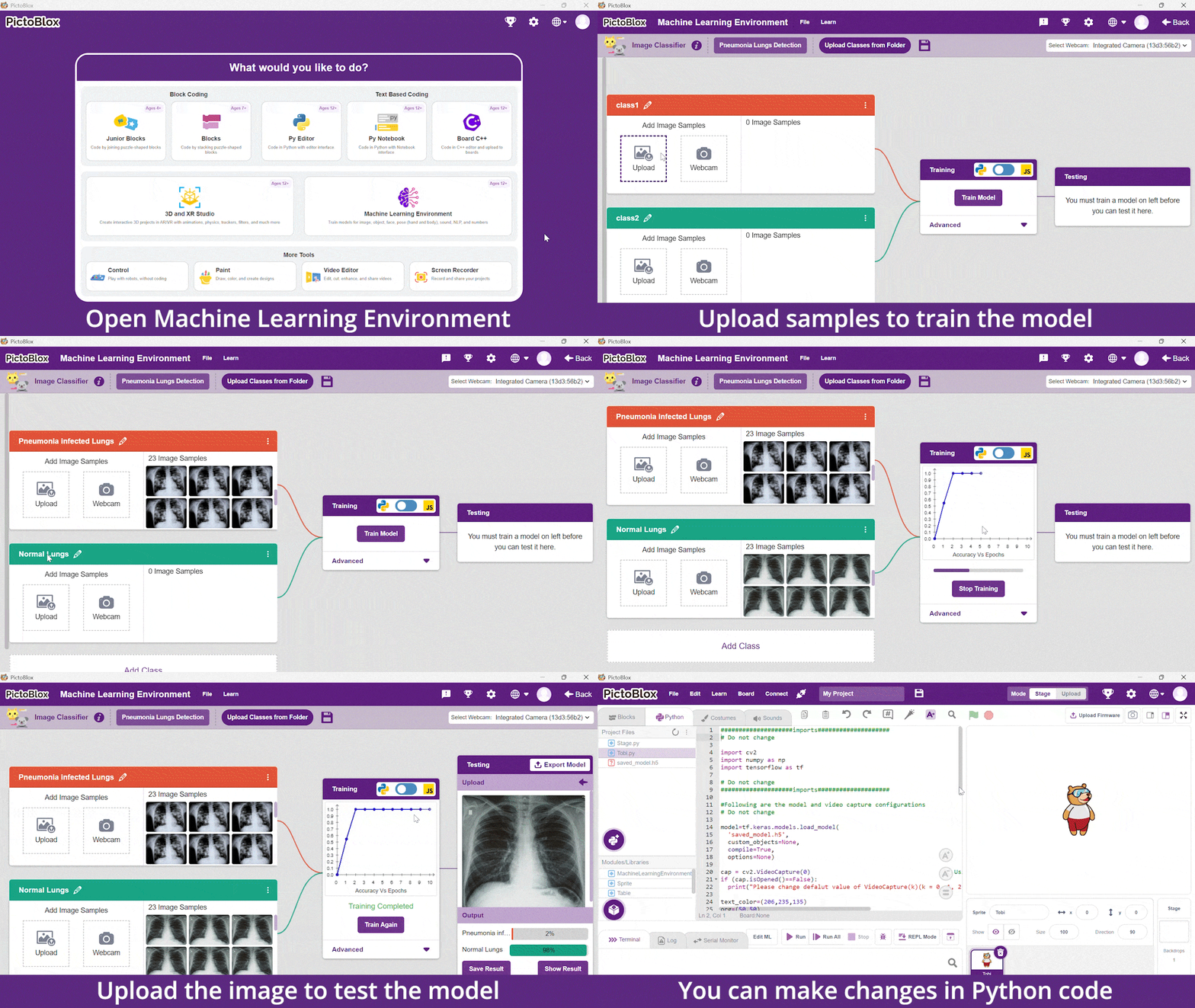
Follow these steps to train the model:
- Open PictoBlox and create a new Machine Learning project.
- Add different classes (categories) for training.
- Collect sample data for each class using the camera or input method.
- Train the machine learning model.
- Switch to the Python Editor and write code to use the trained model.
- Add logic to display the prediction result.
- Run the program.
- Provide new input and observe how the model predicts the output.
Finding and Fixing Errors using Python in PictoBlox
When a program does not work correctly, it usually means there is a mistake in the code. These mistakes are called errors. Debugging is the process of finding and fixing the errors.
By running the program step by step, students can see how the computer reads each line of code. This helps them understand where the problem occurs and how to correct it. Learning how to fix mistakes in code is a great way to help students become even better at thinking through tricky problems and finding smart solutions.
Watch the video and follow these steps for debugging.
- Open the Python Editor in PictoBlox and create a new Python file.
- Write a simple Python program that contains some errors (such as missing brackets, or wrong indentation).
- Run the program to check for errors.
- Observe the error message displayed in the output section.
- Carefully read the error message to understand what went wrong.
- Go back to the code and correct the mistake.
- Run the program again to check if the error is fixed.
- Repeat the process until the program runs successfully.
- The corrected output will now be displayed on the screen.
REPL and Dataframes with Python in PictoBlox
REPL stands for Read, Evaluate, Print, Loop, and it is an interactive environment where students can write Python code and instantly see the output. It allows them to test small commands one by one and understand how Python executes instructions step by step. DataFrames are structured tables made of rows and columns that help organize and manage data easily. They are commonly used to store information like student records, marks, or any dataset. By learning REPL and DataFrames, students understand how to experiment with code and work with real-world data efficiently in Python.
REPL helps students practice and test ideas quickly without writing a full program, which makes learning faster and more interactive. DataFrames help in organizing large amounts of information in a clear format, making it easier to filter, analyze, and draw conclusions from data. Together, these tools build a strong foundation for data analysis, programming, and real-world problem solving.
Watch the video and follow these steps.
- Open the Python Editor in PictoBlox and create a new Python file.
- Import the pandas library.
- Create a DataFrame with rows and columns of data.
- Write code to display the DataFrame.
- Access specific rows or columns from the DataFrame.
- Perform simple operations like filtering or selecting data.
- Run the program.
- Observe how the data is displayed in a tabular format on the screen.
File Handling and Iris Dataset with Python in PictoBlox
File handling in Python allows students to work with data stored outside the program. Instead of typing all information inside the code, data can be saved in files and accessed whenever needed. Python can open a file, read its contents, and use that information in a program. This is useful when working with large datasets or real-world information.
Students also learn how structured datasets, such as the Iris dataset, are organized in rows and columns. By reading such files, they can view data, understand different values, and perform simple analysis. This helps them see how Python is used in data analysis and real-world applications where managing and processing data is important.
Watch the video and follow these steps.
- Open the Python Editor in PictoBlox and create a new Python file.
- Import the required library to read files (such as pandas).
- Load the dataset file (CSV file) into the program.
- Display the dataset on the screen.
- Write code to analyze specific columns or values.
- Perform simple operations like calculating averages or viewing specific rows.
- Run the program.
- Observe how the dataset is read and analyzed in the output.
Manage PIP Packages with Python in PictoBlox
Python allows us to extend its capabilities using external libraries, which can be installed using a tool called PIP. PIP helps install additional packages that add new features to Python. One such useful library is Matplotlib, which is used to create graphs and charts. By using Matplotlib, students can convert numerical data into visual representations like line graphs or bar charts. This makes it easier to understand patterns, trends, and comparisons in data. Learning how to install packages and create visualizations helps students understand how Python is used in real-world data analysis and reporting.
Watch the video and follow these steps.
- Open the Terminal in PictoBlox.
- Install the required package using the pip command.
- Open the Python Editor and create a new Python file.
- Import the installed library (such as matplotlib).
- Create data values to visualize.
- Write code to generate a graph using the data.
- Add labels and a title to the graph.
- Run the program.
- The graph will be displayed on the screen.
Conclusion
Python is a beginner-friendly language that helps students create games, explore AI, and work with real data. With PictoBlox, students can write Python code in an interactive and visual environment, making learning easier and more fun. PictoBlox helps students build confidence, develop problem-solving skills, and take their first steps toward becoming future technology creators.