PictoBlox Version 9.1.0 release builds on recent additions to the PictoBlox ecosystem—most notably the introduction of Quarky Intellio—while also adding powerful tools like C++ coding, Live data graph, and multi-device syncing.
Alongside Quarky Intellio, the update introduces new programming environments, new extensions, improvements to project discovery, and smoother account access. Together, these updates enhance PictoBlox’s ability to support both exploratory learning and structured classroom implementation.
Click here to Download PictoBlox 9.1.0
Quarky Intellio Integration
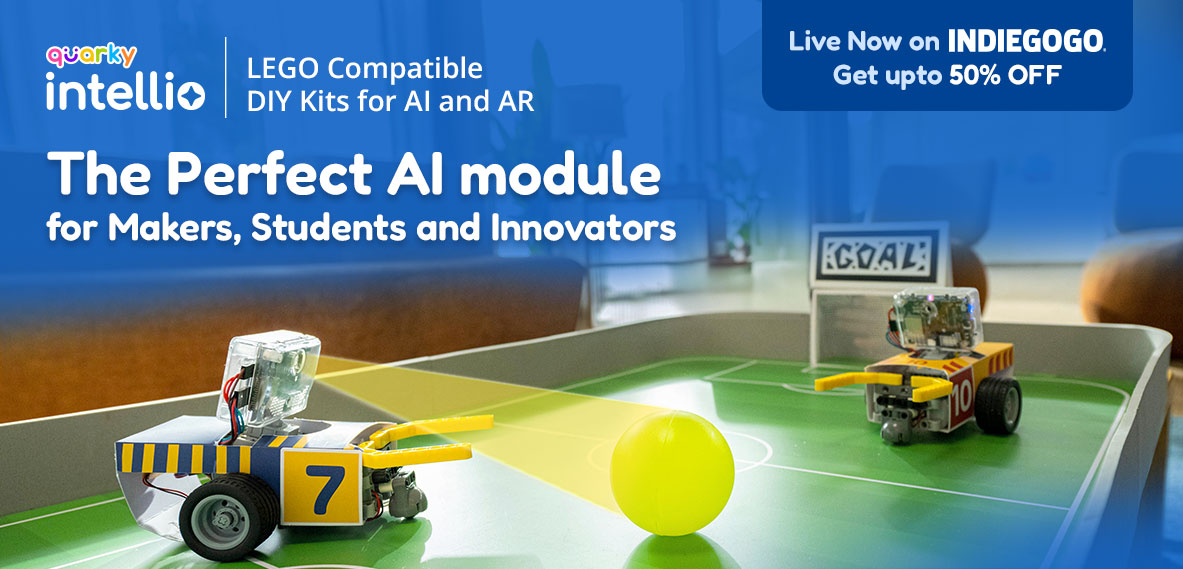
Quarky Intellio is a significant addition to the PictoBlox ecosystem, bringing AI-driven interaction, vision, audio, and wireless communication into a single, integrated system. It extends PictoBlox beyond traditional robotics by enabling direct work with real-world AI inputs such as images, sound, and live data streams without requiring external peripherals or third-party platforms.
Why Quarky Intellio was Introduced
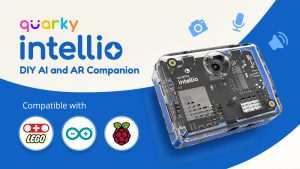
As coding and robotics education shifts toward AI-centric learning, teaching concepts like computer vision, audio interaction, and intelligent decision-making has often required complex hardware setups and multiple tools. Quarky Intellio simplifies this by offering a unified AI and interaction device that integrates seamlessly with PictoBlox, enabling students to explore advanced AI concepts within a familiar coding environment.
Quarky Intellio also lets you create amazing Augmented Reality (AR) projects. Since it has a built-in camera, you can put digital characters or games right on top of the real world—like seeing a 3D robot dancing on your actual desk! By using the camera feed with PictoBlox, your code comes to life in your own room, making it feel like magic.
What Problem Quarky Intellio Solves
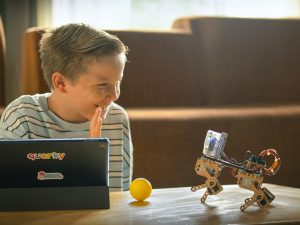
In the past, building a smart robot was a bit like trying to solve a messy puzzle. You had to plug in separate cameras, find extra speakers, and deal with a lot of tangly wires. Usually, these parts were hard to set up, and students spent more time fixing cables than actually learning how to code.
Quarky Intellio fixes this by putting the camera, microphone, and speaker all inside one neat box. Because everything is already in one place, you can stop worrying about tricky setups and messy wires. This lets you jump straight into the fun part—using your creativity to build and test your own smart inventions!
How Quarky Intellio Solves the Problem
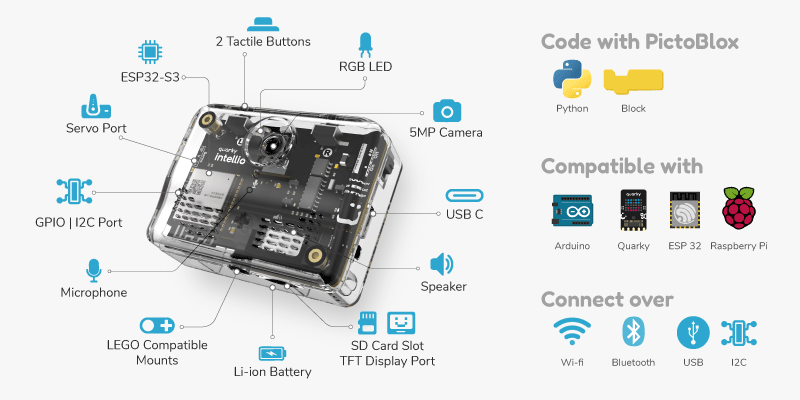
Quarky Intellio integrates multiple interaction and processing capabilities into one compact system:
- A built-in camera that supports image capture, live video streaming, and vision-based projects
- An onboard microphone and speaker for recording, playback, and audio interaction
- Onboard processing to handle real-time AI and interactive tasks
- Wireless connectivity for seamless communication with PictoBlox
Visual and audio indicators provide immediate feedback on device status. LED indicators display power and connectivity states, while onboard buttons allow users to record and play audio directly from the device, enabling intuitive interaction even before coding begins.
Coding with Quarky Intellio in PictoBlox
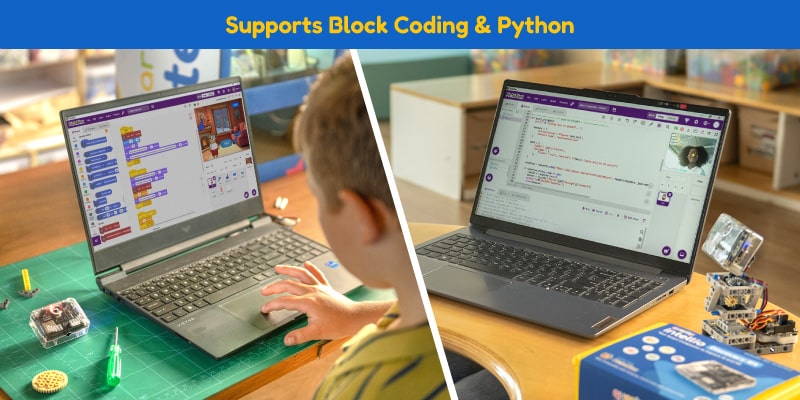
Quarky Intellio works with PictoBlox version 9.1.0 and above and supports both block-based coding and Python programming.
Users can begin by exploring built-in example projects available under Learn → Examples, including camera-based and interactive demonstrations that showcase Quarky Intellio’s capabilities. Once connected, users can run programs directly from the PictoBlox editor using the Green Flag in block coding mode or the Run command in Python mode.
When connected via Wi-Fi, Quarky Intellio supports live video and audio streaming, enabling real-time feedback and interaction during project execution. This allows learners to observe how code changes affect behavior instantly.
To make your projects even more interactive, you can use the built-in Speaker to play sounds or make your robot talk. We have also added SD card support, which lets your robot “remember” things by reading and writing files. This is perfect for saving sensor data or playing your own music files.
New Environments in PictoBlox Version 9.1.0
New and improved environments that expand how users interact with hardware and write code. These updates include the Embedded C++ Environment for advanced coding and the Controls Environment for code-free robot control, making the platform more flexible for both beginners and experienced users.
Embedded C++ Environment
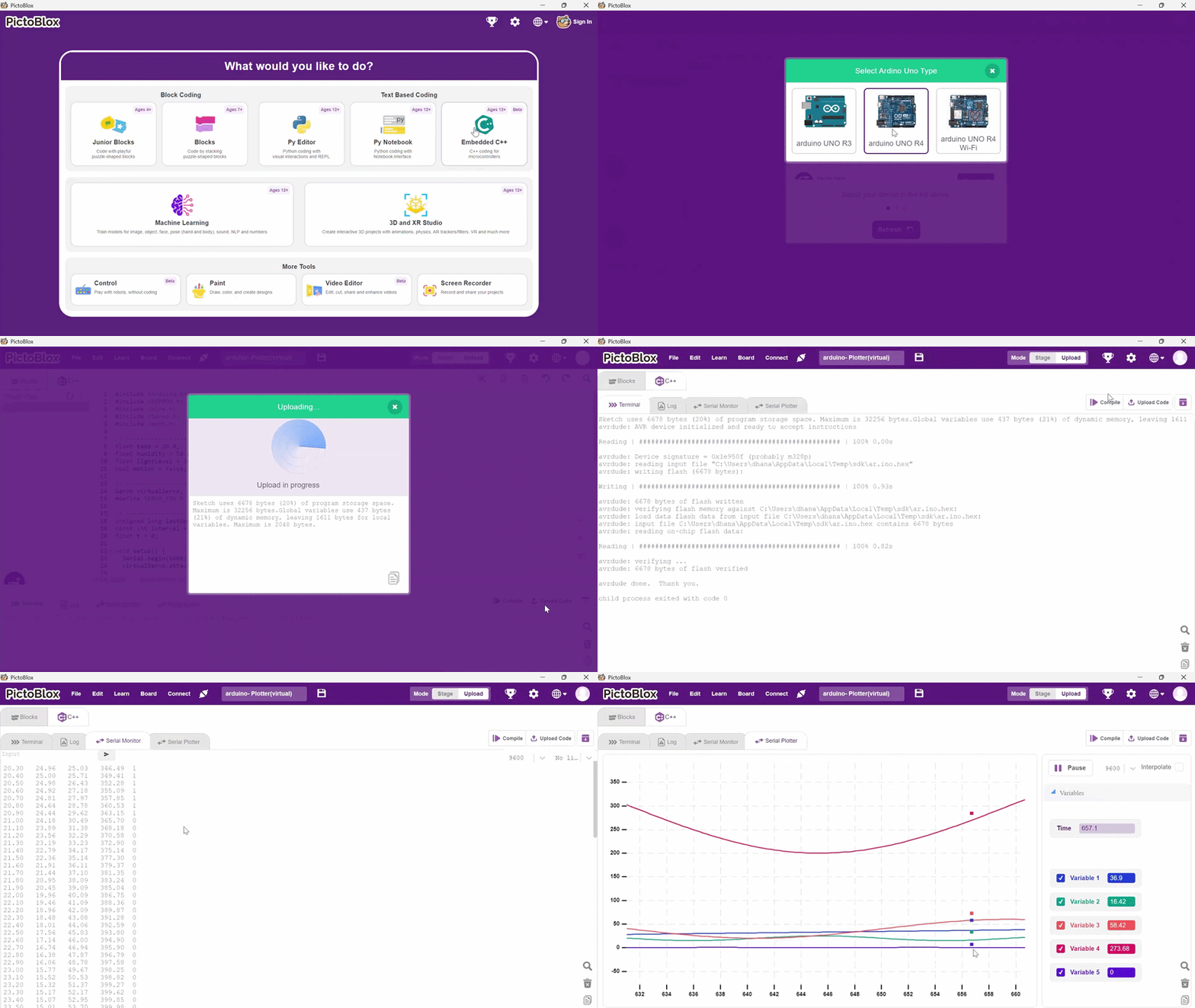
The Embedded C++ Environment lets you write code directly in PictoBlox. This gives you total control over your robot, making it react much faster. It is the perfect bridge for students who want to move from using blocks to the real-world language used by engineers.
We’ve added some great new tools to help you out:
- Serial Monitor: In the Embedded C++ environment, the Serial Monitor displays real-time text output sent using functions such as Serial.print() and Serial.println(). It is commonly used for debugging, checking variable values, and tracking program flow after initializing communication with Serial.begin(baud_rate).
- Serial Plotter: The Serial Plotter graphically represents numerical data sent through serial communication. By printing sensor values as numbers (typically separated by spaces or new lines), users can visualize changes in readings over time, which is useful for analyzing sensor behavior and system performance.
- The “Compile” Button: This is a brand-new feature! You can now click “Compile” to let PictoBlox check your code for mistakes before you try to send it to your robot.
- Easy Library Manager: Adding new libraries used to involve a multi-step manual process of fetching and uploading files from outside the software. Now, you can just search for and download what you need directly inside PictoBlox. It’s much faster and keeps everything in one place.
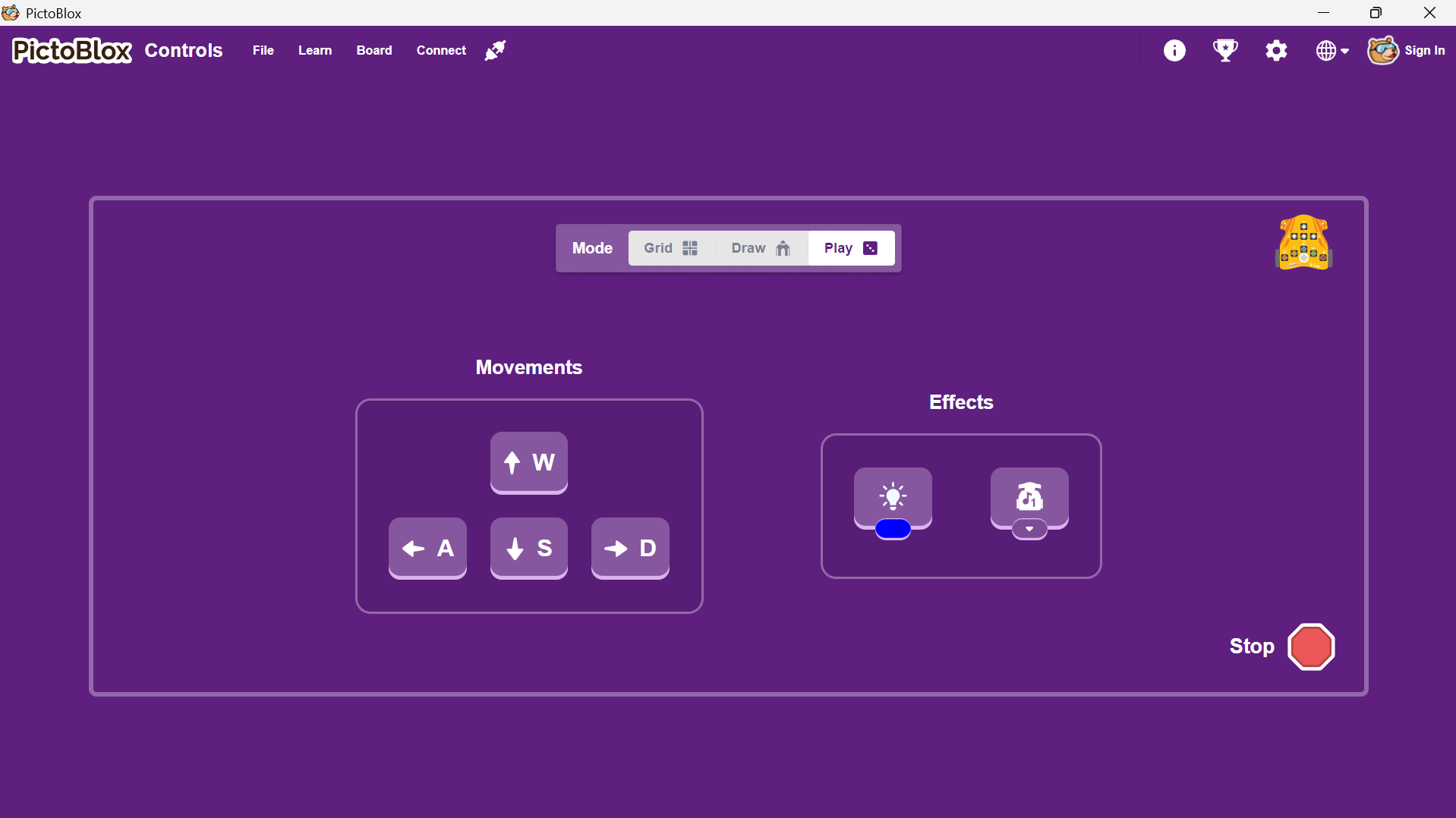
By separating hardware testing from programming logic, the Controller Environment helps reduce trial-and-error cycles and makes physical computing workflows more predictable and efficient.
Controls
New Extensions in PictoBlox Version 9.1.0
New extensions that expand the platform’s capabilities and make projects more interactive and data-driven. These extensions add support for features such as cloud-based variable sharing, image processing, real-time graphs, multi-device communication with Quarky, offline text-to-speech, April Tags detection, and improved text input handling in Content Creation.
Cloud Variable Extension
The Cloud Variable Extension introduces real-time data sharing across multiple devices or projects running PictoBlox. Variables created using this extension can be accessed and updated by different users simultaneously.
This enables a wide range of interconnected applications, such as synchronized robots, distributed sensing systems, and collaborative projects where multiple devices react to shared states.
For example, you could use this to create a Global High Score. When one player breaks a record on their device, the score updates instantly for every other player to see! It can also be used to send simple signals between robots so they act together.
From an educational perspective, this extension introduces learners to foundational concepts of networking, state synchronization, and distributed computing in a simplified and accessible way.
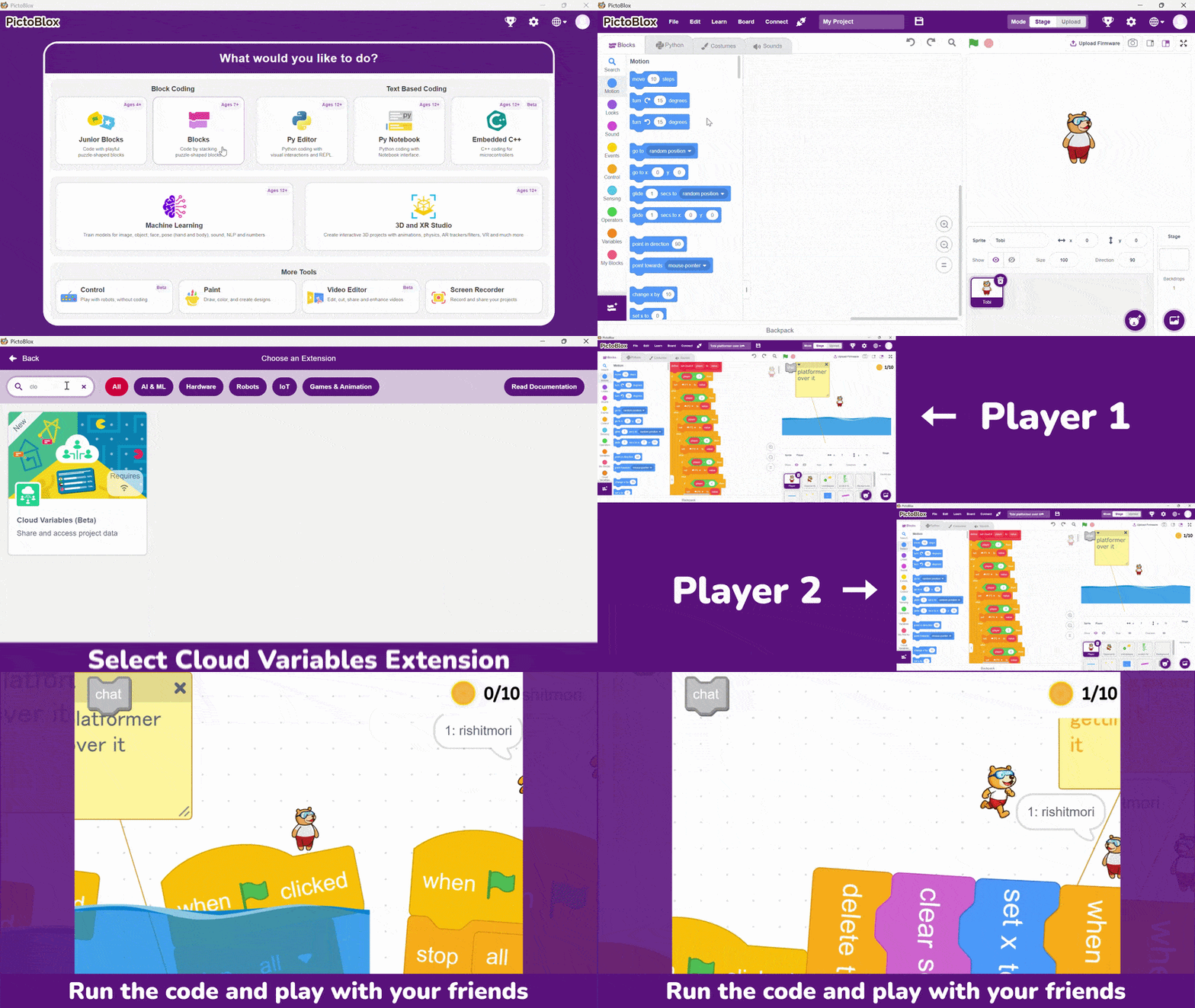
Image Processing Extension
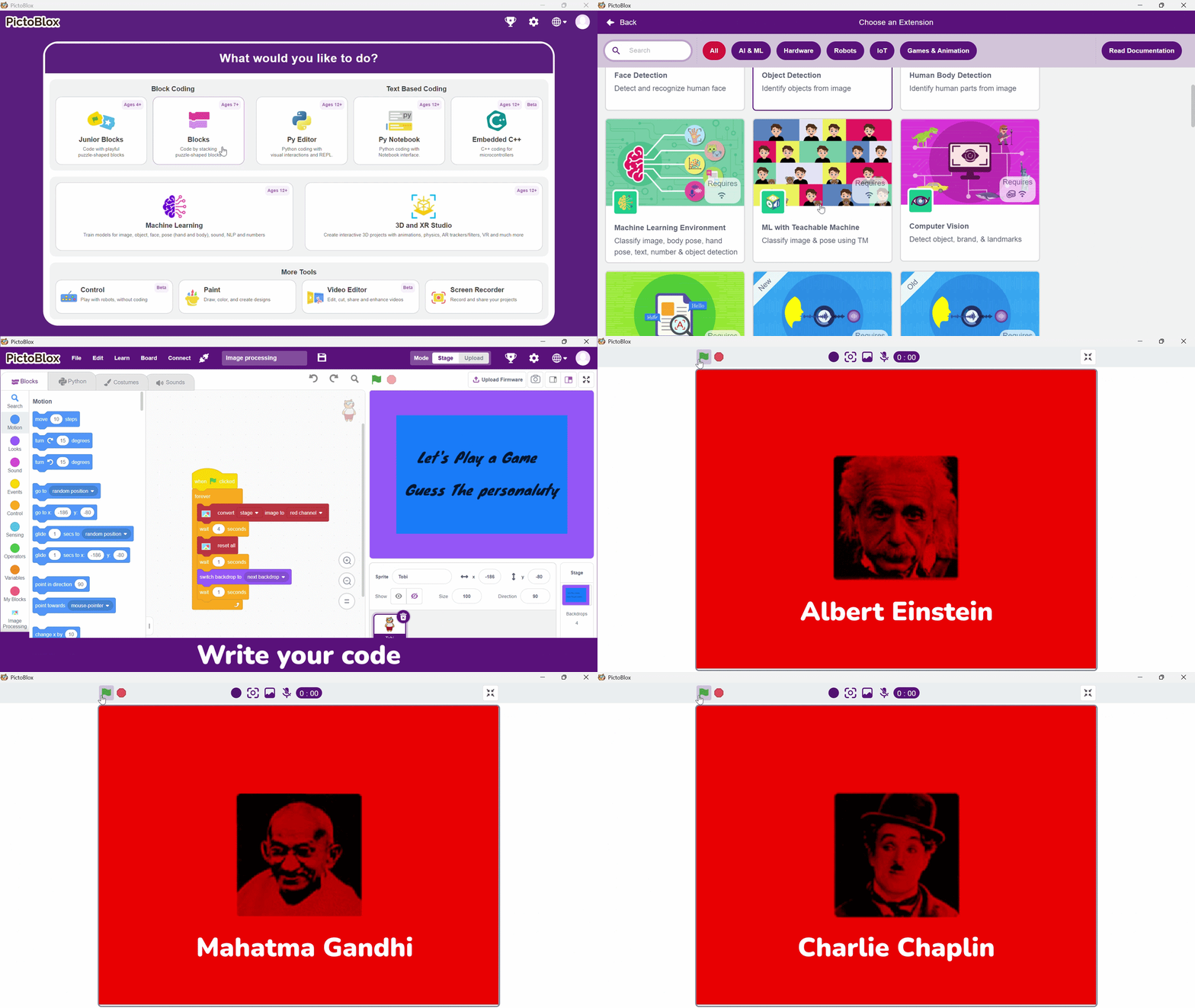
The Image Processing Extension enhances PictoBlox’s ability to work with visual data by enabling direct manipulation and analysis of images and camera input. Users can apply operations such as filtering, transformations, and visual analysis in real time.
This extension is particularly useful for projects involving computer vision, visual feedback systems, and interactive media. It helps kids explore how a computer captures and understands pictures, making it fun and easy to learn how digital vision works!
Quarky Connect Extension
The Quarky Connect Extension allows multiple Quarky boards to work together in perfect synchronization. This system operates through a Master-Peer architecture.
In this setup, there is one Master Quarky—the leader of the group—and multiple Peer Quarkys that follow its lead. The Peer boards communicate directly with the Master board rather than with each other. This ensures that the “brain” of the operation always has total control, preventing the robots from getting out of sync.

Text-to-Speech is Available for Offline Usage
Now your projects can speak instantly without needing the internet. By switching to Offline Speech Mode, the software uses voices already stored on your computer instead of waiting for a web server to respond.
You simply pick a voice from the menu, and your robot or project talks back immediately. This ensures your work is always reliable, even in classrooms or workshops with no Wi-Fi access.
Set Paragraph Input Block in Content Creation Extension
In the Content Creation extension, we’ve added Set Paragraph Input Block for a better way to handle text. Instead of a tiny bubble that hides your words, you now have a large text area that you can resize.
You can type or paste large chunks of information, such as a long story or a detailed prompt, directly into the block. It even has its own scrollbar, so you can read through everything easily without the block stretching across your entire workspace. It makes managing long pieces of text simple and organised!
Graph Extension
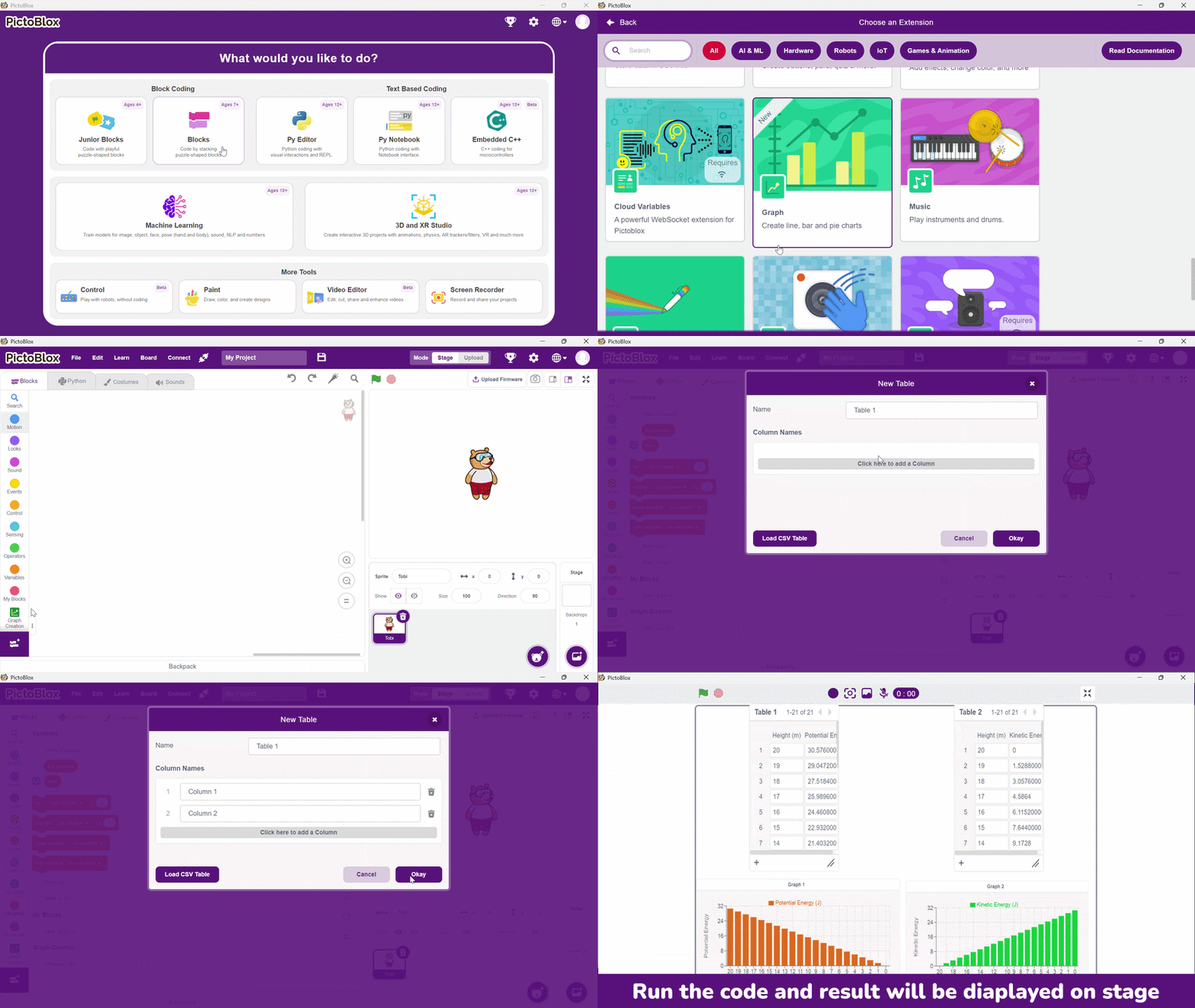
The Graph Extension introduces built-in tools for visualising data generated during program execution. Users can plot variables and sensor readings in real time, creating dynamic graphs that update as values change.
This visual representation helps learners understand relationships between inputs and outputs, identify trends, and observe system behaviour over time. It is especially useful for experiments involving sensors, environmental data, or performance analysis.
By making data visualisation an integrated part of the coding environment, PictoBlox supports analytical thinking and reinforces the importance of data-driven observation.
April Tags Extension
The April Tags Extension introduces robust support for April Tags, which are specialised square markers used in robotics and computer vision for high-precision object detection and positioning. Unlike standard QR codes, these patterns are specifically engineered for easy detection and recognition by algorithms, allowing PictoBlox to identify a tag’s unique ID and determine its exact coordinates relative to a camera feed.
By integrating this extension, users can develop sophisticated, interactive projects where robots navigate toward specific markers or digital actions are triggered by physical cards. From an educational standpoint, it provides a practical gateway to professional concepts such as marker-based tracking, spatial recognition, and vision-guided automation, effectively bridging the gap between digital code and physical movement.

Updated Examples Screen
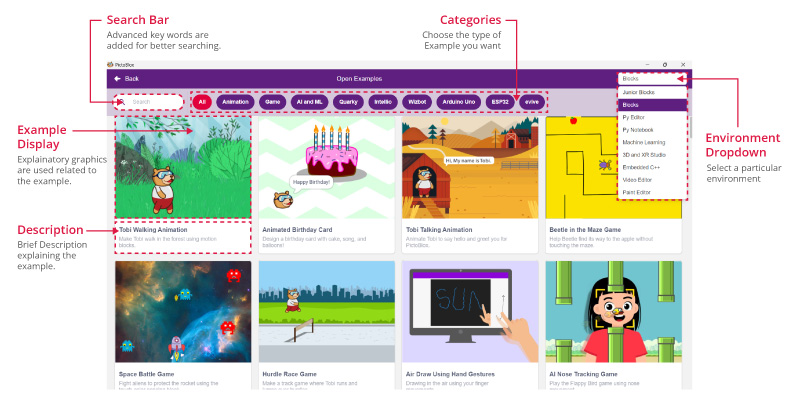
Finding the right project to start with has just got a lot easier! We’ve completely redesigned the Examples Screen to help you go from “curious” to “coding” in seconds. Here’s how the new look helps you learn:
- Project Preview: Every example includes improved and clear graphics that show exactly what the project does before you even open it.
- Everything in One Place: You no longer need to switch menus to find what you need. Whether you are looking for Blocks, Python, or C++, all project examples are now visible on one single screen.
- Quick Summaries: We’ve added a description to every example, so you’ll know the project’s goal at a glance.
- Code Explanations: Every example code snippet now includes helpful comments. These act like a personal teacher, explaining how the code works while you explore it.
- Grow Your Skills: Projects are now arranged by difficulty. You can start with the simple “beginner” projects and move up to the “pro” levels as you get more confident.
Enable/Disable Blocks and Scripts
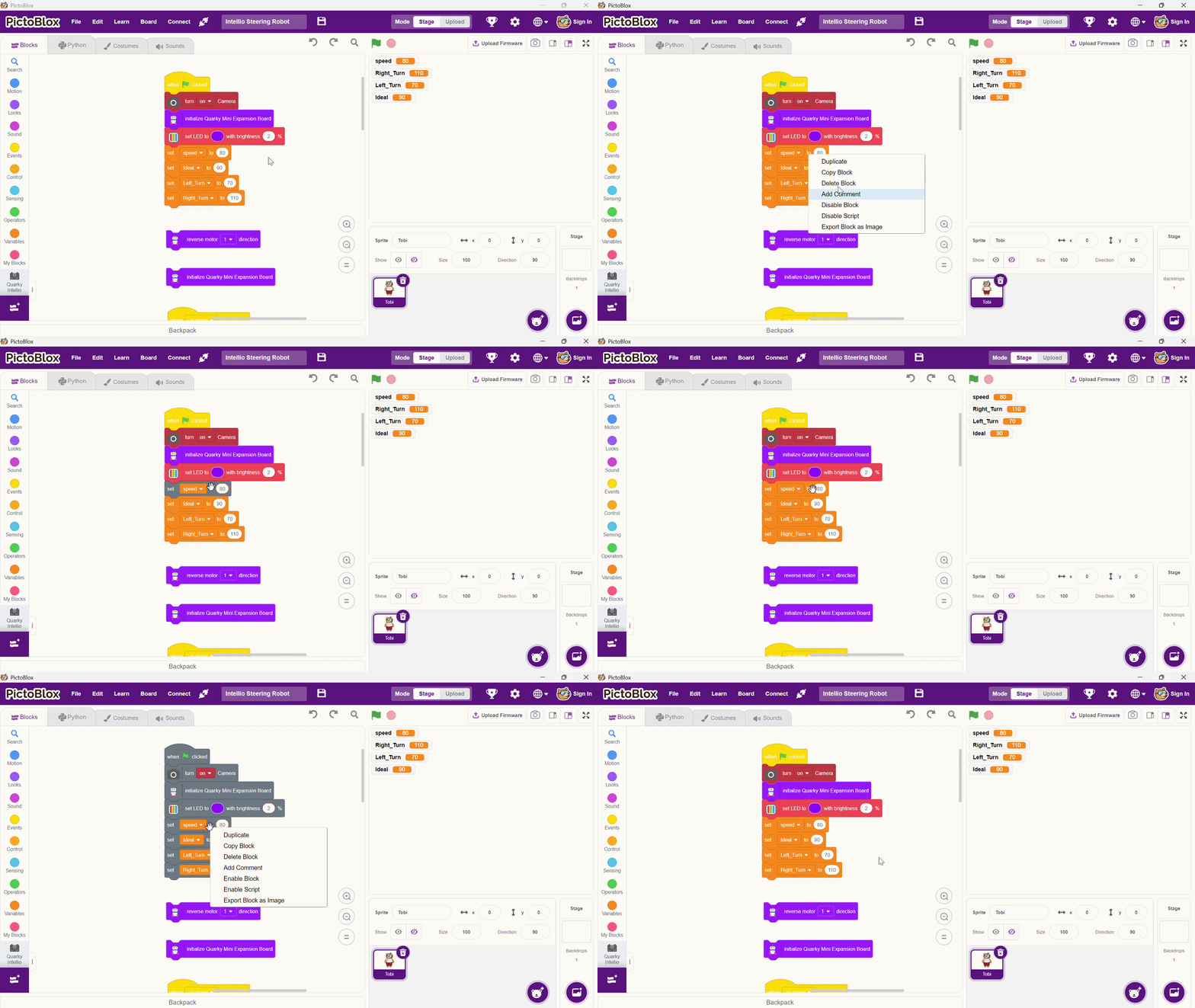
Now PictoBlox have a useful Enable/Disable feature that lets users deactivate individual blocks or entire scripts directly in the workspace. By temporarily turning off parts of a program without deleting them, users can easily isolate specific sections of code for debugging and troubleshooting.
This functionality simplifies the learning process by letting educators and students toggle logic paths on or off to compare different approaches. It eliminates the need to repeatedly remove and recreate blocks, providing a much more efficient environment for experimentation and testing new ideas.
Search in the Scripting Area
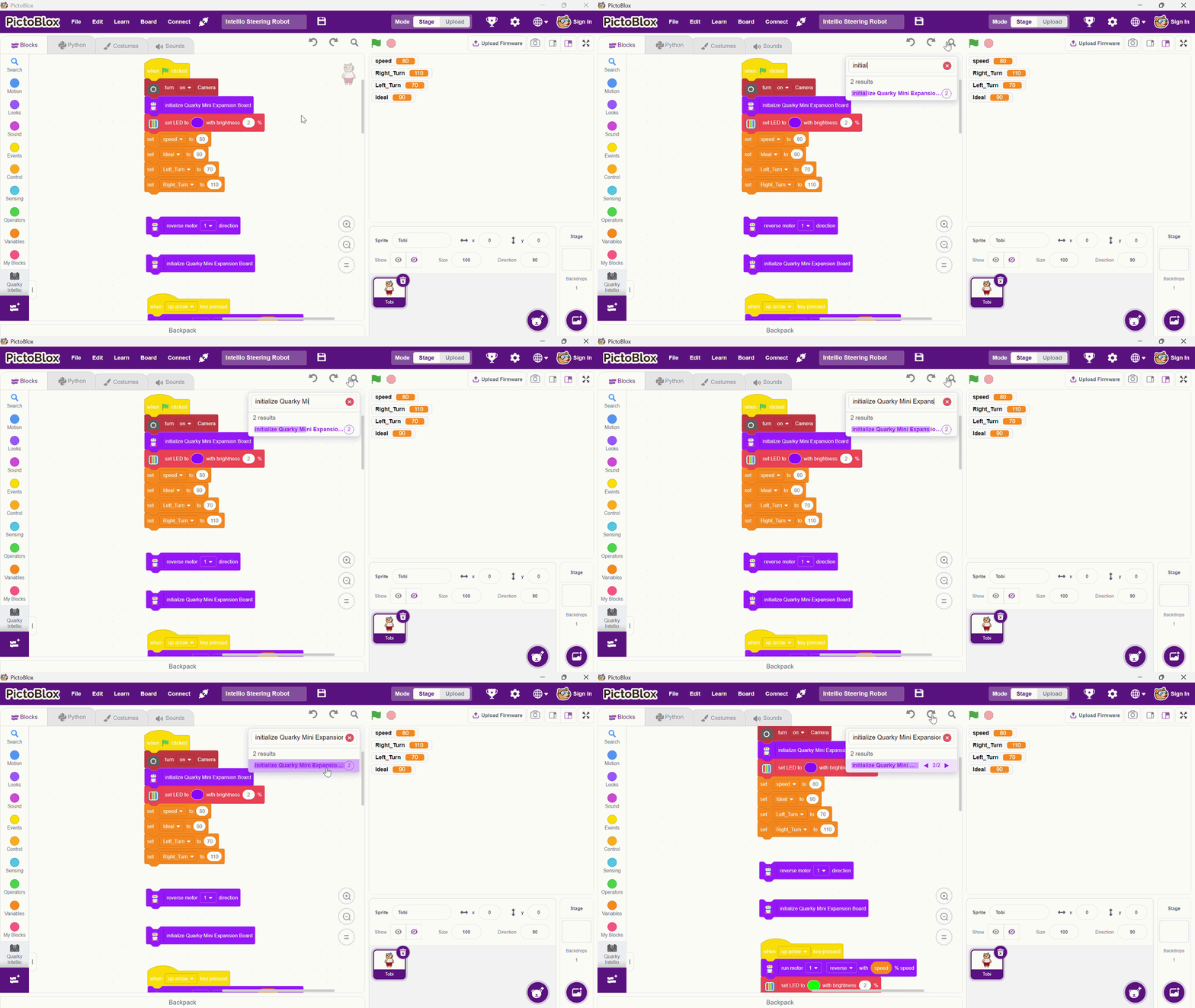
The Search functionality in the Scripting Area allows users to quickly locate blocks, scripts, or text within the coding workspace for a specific sprite.
As projects grow in complexity, scripts can become larger and more difficult to navigate. With the search tool, users can instantly find relevant code sections instead of manually scanning through multiple scripts.
Platform Access and Account Updates Single Sign-On
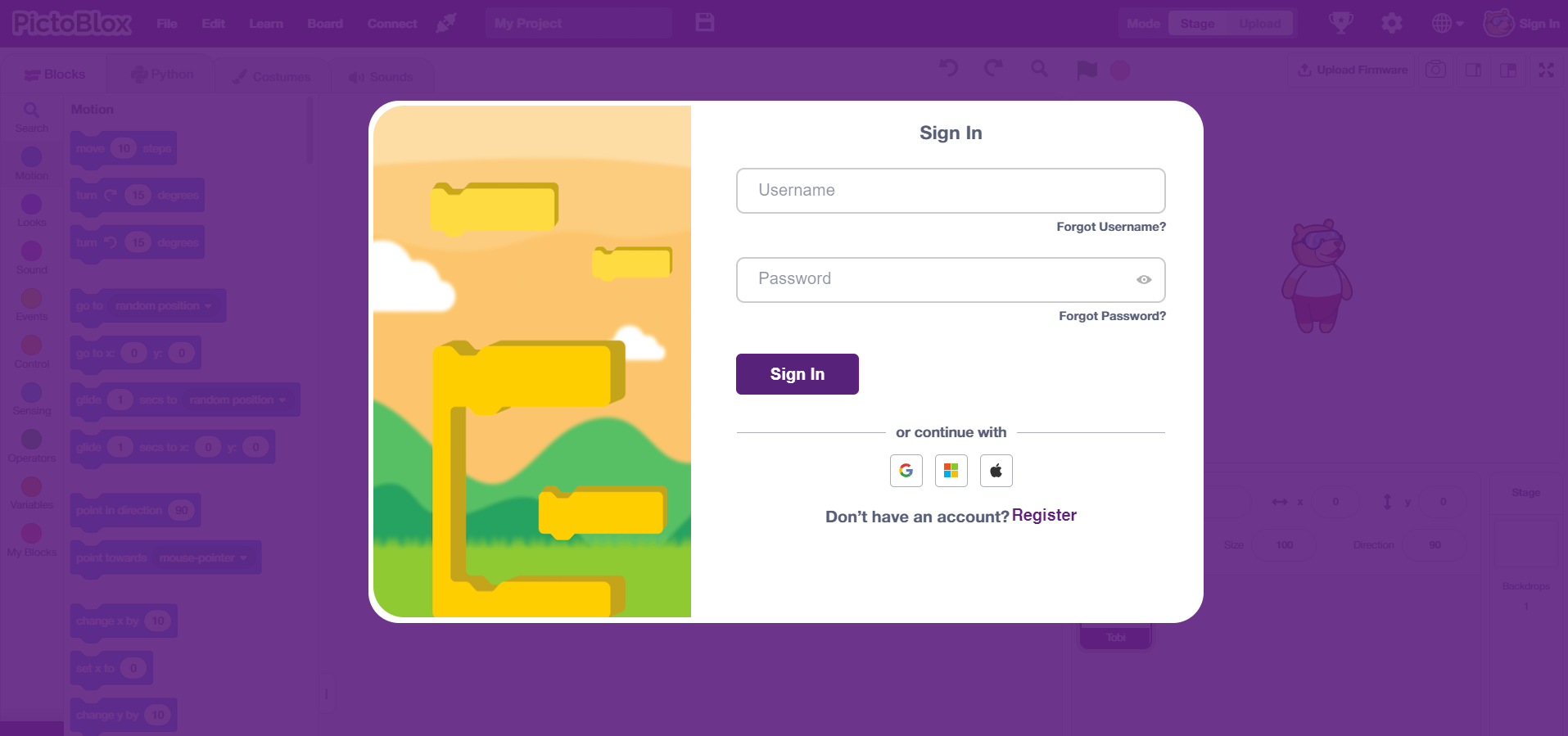
Single Sign-On (SSO) improves overall accessibility by allowing users to log in with a single set of credentials across supported services. This reduces the need to manage multiple usernames and passwords.
In institutional and classroom settings, SSO ensures faster onboarding, fewer access issues, and smoother transitions between devices. It also helps maintain consistency in user accounts and project access.
3D and XR Environment
The 3D and XR Environment in PictoBlox Version 9.1.0 introduces improvements that make working with 3D projects more precise and flexible. This update adds Snap Features in 3D Studio for easier object alignment and an Annotation Focus On/Off option that lets users show or hide AI tracking overlays in the camera feed while keeping the tracking active.
Snap Features
These function as “magnetic” alignment tools found in the 3D toolbar.
- Face to Face: You select a specific surface (face) of a 3D model, then click a surface on another model. The software moves the objects so those two flat planes are perfectly touching with zero gap.
- Object to Face: You select an entire object and click a target surface. The “base” or centre point of that object automatically jumps to sit directly on top of that surface, preventing objects from floating in 3D space.
Annotation Focus On/Off Option
This is a visual toggle found in the AI extension monitor (the window that shows your camera feed).
- On: The stage displays the “skeleton” or “bounding boxes” (the technical lines over your face or hands).
- Off: The AI continues to track your movements in the background, but the stage shows only the clean camera feed or the game background. It hides the “tech” while keeping the “logic” active.
In a Nutshell
PictoBlox Version 9.1.0 brings several important updates that enhance the platform’s capabilities for coding, AI, and robotics learning. With the introduction of Quarky Intellio, new environments like Embedded C++ and Controls, and multiple new extensions, users can create more interactive and advanced projects.
These improvements, along with better examples and smoother platform access, make PictoBlox 9.1.0 a more powerful and accessible tool for both learning and classroom use.
Click here to download PictoBlox 9.1.0